Add and label categories for the closed and hybrid card sort
Add descriptions to your categories
Import and export your categories in a CSV file
Adjust how the respondents interact with the categories in all types of card sort
Add and label categories for the closed and hybrid card sort
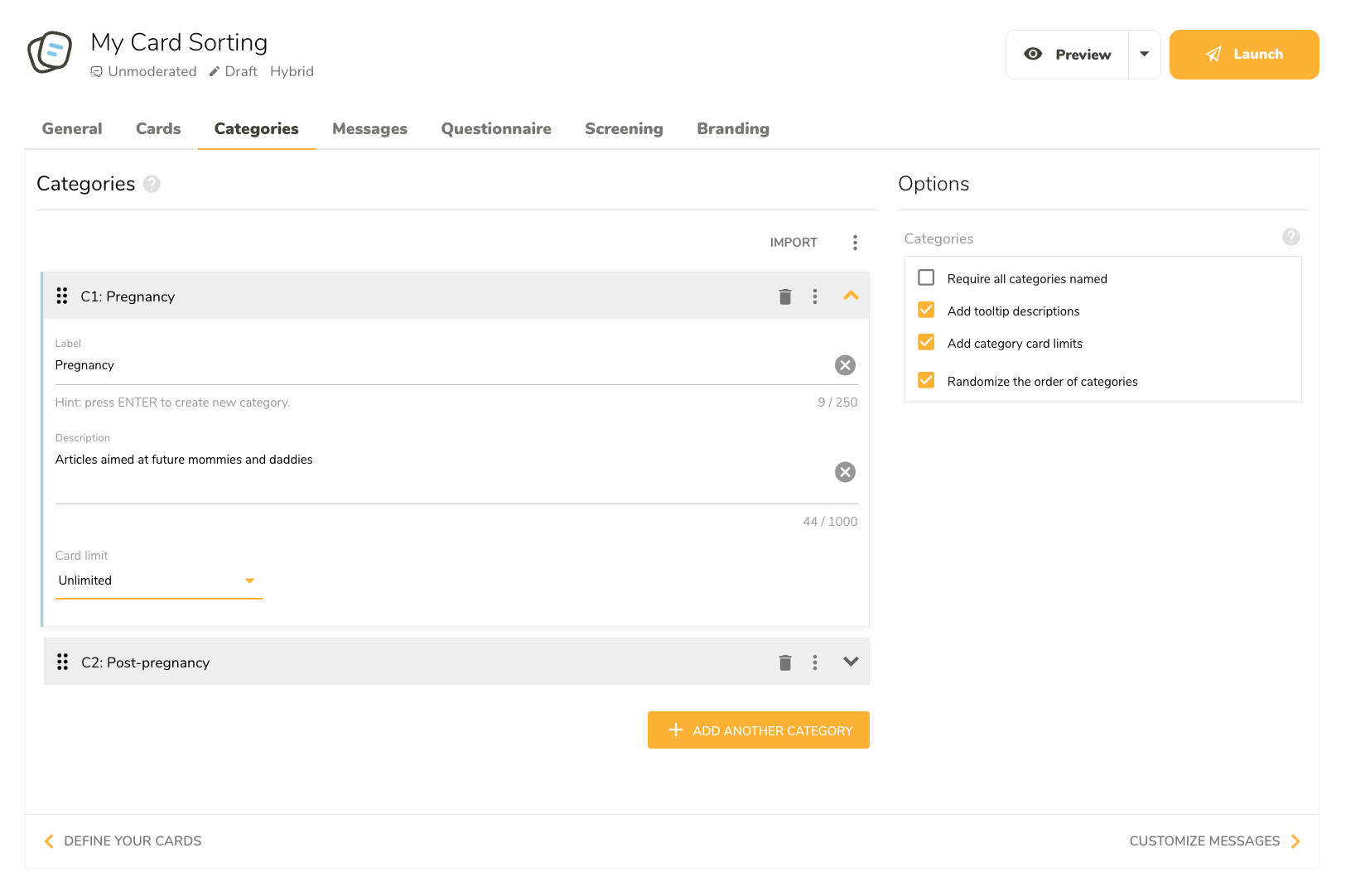
To write a category label, simply open a category and fill in the label
To insert more categories into the card sort, click Add category
Define and customize categories
In closed and hybrid Card Sorting, you create the pre-existing categories here. You can also turn card limits and tooltip descriptions on and off. In open and hybrid Card Sorting, you can also define rules for user-defined categories (such as whether they have to be named).
Add descriptions to your categories
To add descriptions to categories, you have to enable them first. To enable them, select Add tooltip descriptions in the options panel to the right.
Add category descriptions in the same way as the labels.
Import and export your categories in a CSV file
Above the categories editor, there is an option to import and export cards stored in a CSV file. Use this option to easily reuse your categories between Card Sorting studies or, if you want, to bring in categories created somewhere other than in UXtweak.
Use UTF-8 encoded CSV files to ensure that the import works correctly. The simplest way to save your imported file with UTF-8 encoding is to edit it through Google Sheets (click the link for more instructions). To get a UTF-8 encoded file when saving your file in Excel, go to File -> Save As and select CSV UTF-8 before you click Save.
The category export carries the information about the category labels, descriptions, and card limits.
Adjust how the respondents interact with the categories
By default, the respondents in open and hybrid card sort don’t have to name all of the categories they create to complete the study. If you want them to find a name for all categories, select Require all categories named.
Select Add category limits if you have any categories that should only contain a certain number of cards (e.g., ‘Top 5’). Then, go inside that category and set the maximum in there by setting the Card limit.
Unless the order of categories is randomized, the respondents sort cards in the order they’re listed in.
To move a category up or down on the list, simply drag and drop it to the desired destination. Alternatively, use the Move up/down buttons under the ellipsis button.
To show the categories to respondents in a different order, select Randomize the order of categories.
We need your consent to use cookies
on our website to provide you with the highest level of service.
You can change the settings by clicking the "Settings" button.
These cookies are necessary to ensure the operation and basic functions of the UXtweak website.
They store information about your UXtweak session and help protect your privacy.
Analytics cookies
These cookies are used to analyze traffic on our website, so that we can better understand our users
and improve the site's content, usability and functionality.