How do I interpret the Task Statistics in Five Second Test?
Table of contents
In this help, we’ll discuss how to use the Task Statistics analysis to:
View Task Statistics per task
Group free-text answers
Hide unused answers
View Task Statistics per task
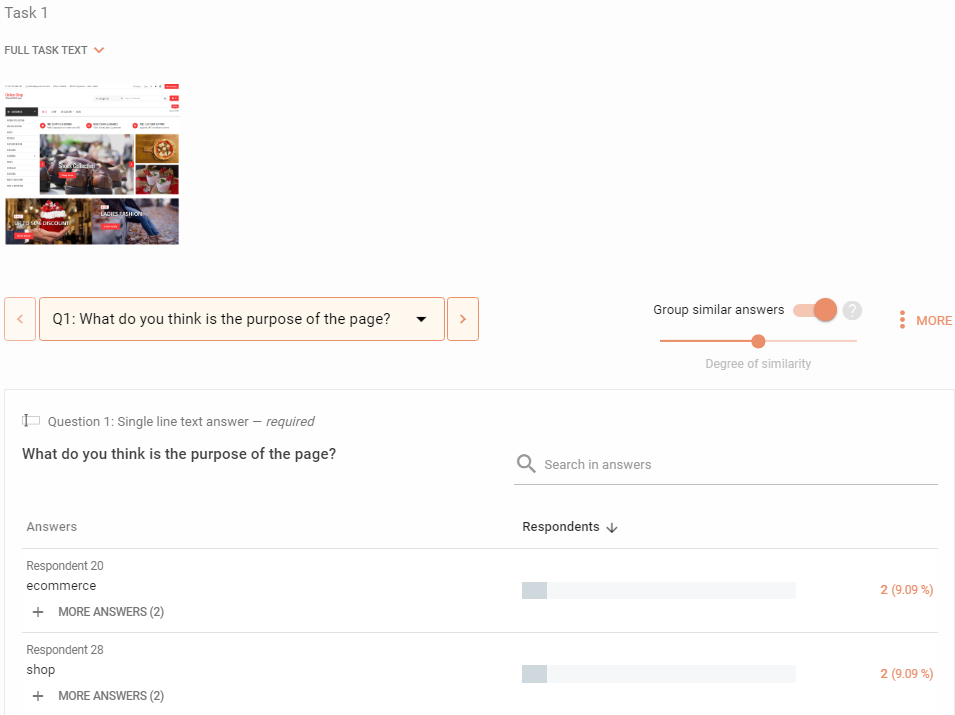
This analysis displays Task Statistics one task at a time
Use the task selection dropdown and the question selection dropdown list in the top section of the screen to switch to the task and question you want to analyze correspondingly.
Alternatively, use the arrow buttons to the left and right of the dropdown list to move to the previous/next task.
You can also move between questions by pressing the arrow buttons on either side of the question selection dropdown list.
Each question displays its order, type, text and answers, along with the number of respondents who gave that answer (total and percentage)
Task Statistics
On this tab, you can see an analysis of each individual question. Easily navigate between questions using arrows or dropdown. Analysis displays all the answers with the number of respondents who gave the same answer.
Net Promoter Score
If a question is a Net Promoter Score question, besides a bar chart of scores, you’ll also find additional stats:
Answers are split into three groups based on the score. Each group provides a number of respondents and a percentage:
Promoters– Score 9-10 – Users who are happy with using your website/service/etc. and spread the word to others.
Passives– Score 7-8 – Users who are content but have their reserves. Fix what ails them to decrease the chance of their defecting to competition.
Detractors– Score 6 and lower – Unhappy users who may spread negative word of mouth. Pay close attention to what they have to say.
Net Promoter Score– The final score is calculated as the percentage of promoters minus the percentage of detractors. Its value is a number between -100 (if all respondents are detractors) and 100 (if all respondents are promoters). The higher the value, the better.
Group free-text answers
With free-text questions, you can turn onGroup similar answersto consider similar answers as the same answer (this resolves issues with uppercase/lowercase and typos automatically, e.g. ‘bank’, ‘Bank’ and ‘bamnk’ get grouped together)
Set theDegree of similarityto adjust how similar two answers have to be in order to be considered as the same answer
The higher the Degree of similarity, the stricter the grouping will be (the Degree of similarity is used as a bottom threshold onDice’s Coefficientwithin the group)
Under the ellipsis button, turn offSet Degree of similarity value as globalto set the Degree of similarity for each question individually
Hide unused answers
Under the ellipsis button, turn onHide answers with no responsesto hide those answers in multiple-option questions that no respondents picked from the analysis.
We need your consent to use cookies
on our website to provide you with the highest level of service.
You can change the settings by clicking the "Settings" button.
These cookies are necessary to ensure the operation and basic functions of the UXtweak website.
They store information about your UXtweak session and help protect your privacy.
Analytics cookies
These cookies are used to analyze traffic on our website, so that we can better understand our users
and improve the site's content, usability and functionality.