How do I use the Respondents tab in Survey results to manage respondents?
Table of contents
In this help, we’ll explain how to use the Respondents tab to:
Use the respondent list
View details about individual respondents
Filter respondents
Apply mass actions to selected respondents
Get exports of respondents
Use the respondent list
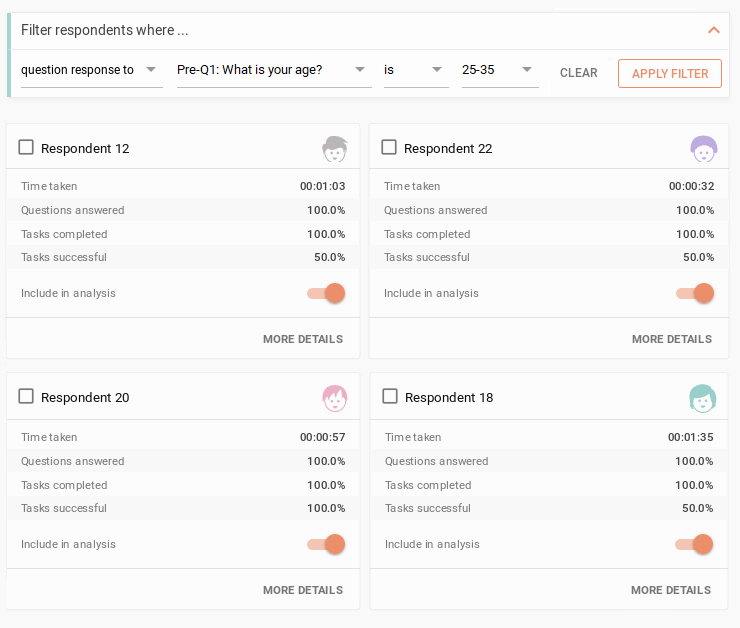
The list of respondents is the main feature of the Respondents tab. These are are all the people who participated in your study. Each respondent’s entry contains:
The respondent’s number and icon. The icons are randomly generated and serve only for easier identification of respondents
Respondent selection via a checkbox. Selected respondents are highlighted and can haveseveral operations done on top of them
Time taken– how long it took the respondent to complete the whole study
Questions answered– the number of questions expressed by a percentage
Include in analysis– determines whether the respondent should be counted in the calculations found under the Analysis tab. Respondents who abandon the study are excluded by default.
After you’ve adjusted which respondents should be included in the analysis, clickRecalculate analysisabove the list of respondents to apply the changes to the analysis (everything under the Analysis tab)
By default, the respondents are ordered by the time when they participated in the study. You can change this order by selecting a different sorting metric in theSort bydropdown list above the respondent list. Click the arrow buttons to change between ascending (arrow up) and descending (arrow down) order
View details about individual respondents
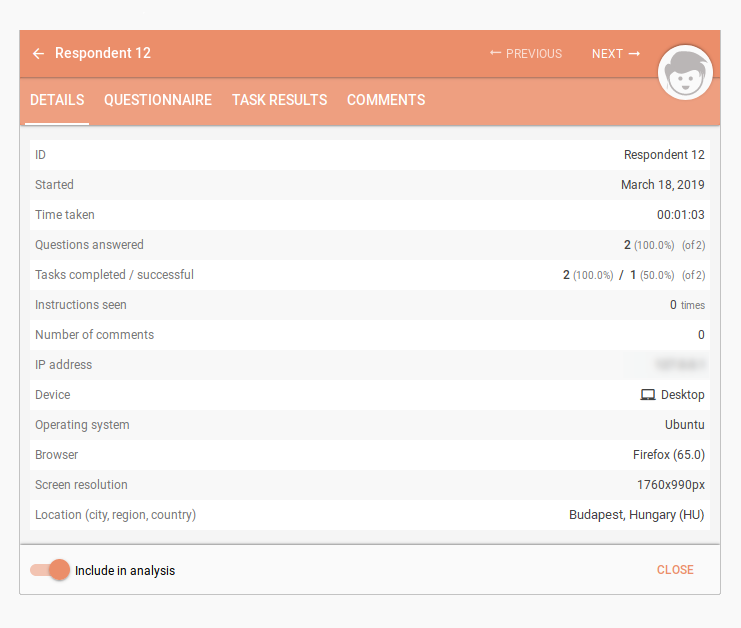
To view more information about the respondent, clickMore detailsbeneath the respondent’s entry. There are four tabs in the detailed respondent modal view with the following contents:
Respondent’s Details
ID– the number of the respondent
Started– when the respondent opened the study
Time taken
Questions answered
Number of comments– how many comments the respondent left behind
IP address
Device
Operating system
Browser
Screen resolution
Location (city, region, country)
Respondent’s Questions
The question results show the respondent’s answers for each question, as well as the question text and the list of available options (in case of multiple-option questions).If you include Skip Logic in your questionnaire it is important to differentiate between:
Question skipped – the participant didn’t see this question because of the Skip Logic rules
Question seen, did not answer – the participant saw this question and decided to skip it
Filter respondents
Filter the respondents to only display the ones who meet a certain criteria
You can filter the respondents based on the time it took them to complete the study
If your questionnaires contained multiple-option questions, you can also filter the respondents based on their answers
Enter your filter and then pressApply filterto filter the respondents
If any selected respondents become invisible due to a filter, they will also be de-selected
Respondent list
The respondent list provides you with basic information about respondents. Decide whether you want to include a respondent or not using your own criteria.
Detailed respondent overview
This view shows all known information about the particular respondent. It can be used for detailed filtering or meticulous analysis of individual respondents.
Apply mass actions to selected respondents
You can either select respondents individually, or en masse by using theSelect allandDeselect allbuttons
Deselect respondents by a chosen criteria by using the filters
Pick an action that you want to do with the selected respondents and clickGoto execute it
Mark as included/excluded– marks all selected respondents as eitherincluded or excluded in the analysis
Delete– permanently deletes all of the respondent’s data related to the study
Export as CSV– exports details about the selected respondents (the same details as seen in the Respondent’s Details tab) as a CSV spreadsheet
Export as PDF– exports details about the selected respondents (the same details as seen in the Respondent’s Details tab) as a PDF report
The order of columns in the respondent export:
Order
Identifier
Started
IP
Device
Operating system
Browser
Location
Time taken
Answered questions (percentage)
Get exports of respondents
You can get a CSV export or PDF report of all the respondents in the respondents tab, with all respondent data as you can see it in the web interface. To create an export, clickExportin the upper right corner of the tab contents and select between a CSV file and a PDF file.
If you wish to create a PDF report using more than one section of your study’s results, go to theExport tab.
We need your consent to use cookies
on our website to provide you with the highest level of service.
You can change the settings by clicking the "Settings" button.
These cookies are necessary to ensure the operation and basic functions of the UXtweak website.
They store information about your UXtweak session and help protect your privacy.
Analytics cookies
These cookies are used to analyze traffic on our website, so that we can better understand our users
and improve the site's content, usability and functionality.