In this help, we’ll discuss how to use the Tasks tab to:
Create tasks for your respondents to fulfill
Adjust the order and number of tasks and the order of designs
Create post-task questionnaires
Create tasks for your respondents to fulfill
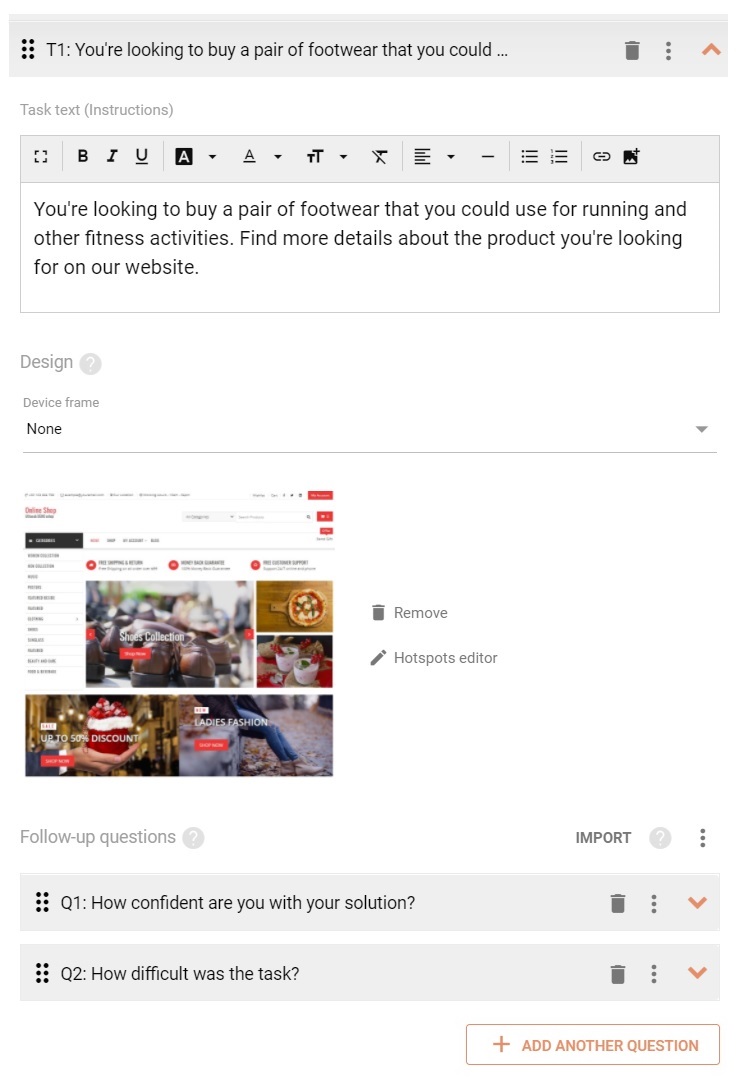
Each task in a first click test is aimed at learning where in the design the respondents expect that they should click in order to solve the task.
Your task text should set up the scenario that the respondent should try to solve, as well as prompt them to make that first click.
You may import your design as JPG/JPEG, PNG or GIF file up to 5MB in size.
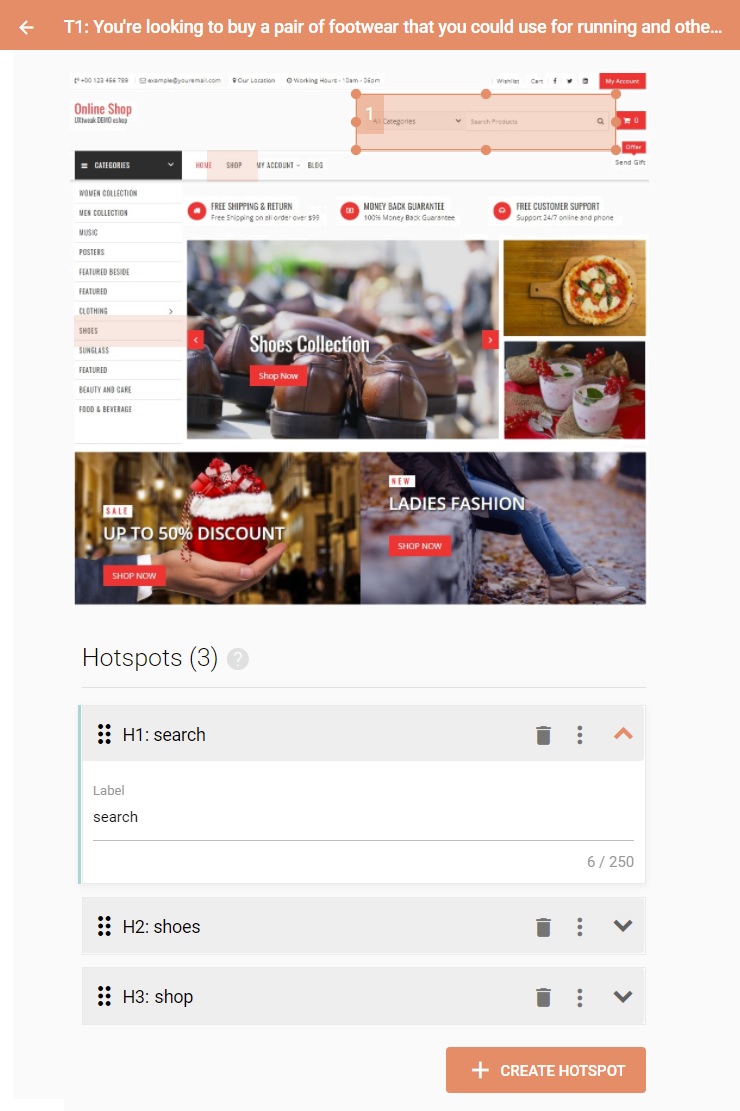
For analysis of click data, you may draw hotspots in your design by opening theHotspot editor. The hotspots aren’t shown to the respondents at any time. Rather, they are used to attribute clicks to areas of interest, such as buttons or other UI elements.
To create a hotspot in the Hotspot editor, click one corner of an area and drag your cursor to the other corner. Don’t forget to name the newly created hotspot in the hotspot list on the right, to facilitate analysis. Create hotspots for all elements that are important to you.
Set the device frame if you’re testing mobile designs and the respondents on desktop will see what the design would look like if framed within the specified type of device.
To insert more tasks into the first click test, clickAdd another task
By default, respondents can’t skip tasks. You can enable them to skip tasks by checkingAllow respondents to skip tasks
CheckPrompt respondents to confirm their choiceto show the respondents a dialogue when they make the first click. In this dialogue, they will be prompted to confirm their choice. This can be used to prevent accidental clicks, although it also causes the answers to be less spontaneous, since the respondents can change their opinion and nominate a click that actually wouldn’t be their first reaction.
Simple setup manager
Create your tasks, personalize the follow-up questions and add hotspots with the Hotspot editor
Hotspot editor
Here, you can define your hotspots (the correct clicks). You can define multiple hotspots of different sizes for each task. Don’t forget to name each hotspot to facilitate analysis.
Adjust the order and number of tasks and the order of designs
Unless the order of tasks is randomized, the respondents solve tasks in the order they’re listed in
To move a task up or down on the list, simply drag-and-drop it to the desired destination. Alternatively, use theMove up/downbuttons under the ellipsis button
To show the tasks to respondents in different order, selectRandomize task order
The same logic applies to the order of designs. You can randomize the order of designs by checkingRandomize designs order
To keep the first task static (e.g. to use it as an example), checkDon’t randomize the first task
If the order of tasks is randomized, by changingNumber of tasks to show to a respondent, you can show every respondent only a certain number of tasks from the total number of tasks available
Create post-task questionnaires
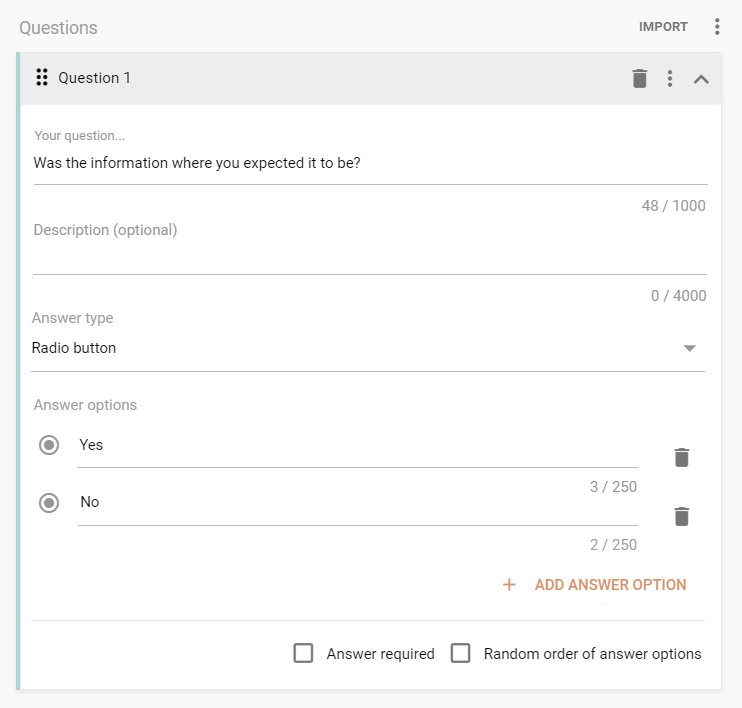
Aside from the surveys in theQuestionnaire tab, you can also ask questions immediately after each task
This is recommended for gathering immediate feedback to prevent important information about solving individual tasks being mixed up of forgotten
We need your consent to use cookies
on our website to provide you with the highest level of service.
You can change the settings by clicking the "Settings" button.
These cookies are necessary to ensure the operation and basic functions of the UXtweak website.
They store information about your UXtweak session and help protect your privacy.
Analytics cookies
These cookies are used to analyze traffic on our website, so that we can better understand our users
and improve the site's content, usability and functionality.