How do I interpret the Cards Analysis in Card Sorting?
Table of contents
This section covers how to use the Cards analysis to:
View which categories cards were sorted into
Get a PDF Export of Cards analysis
View which categories cards were sorted into
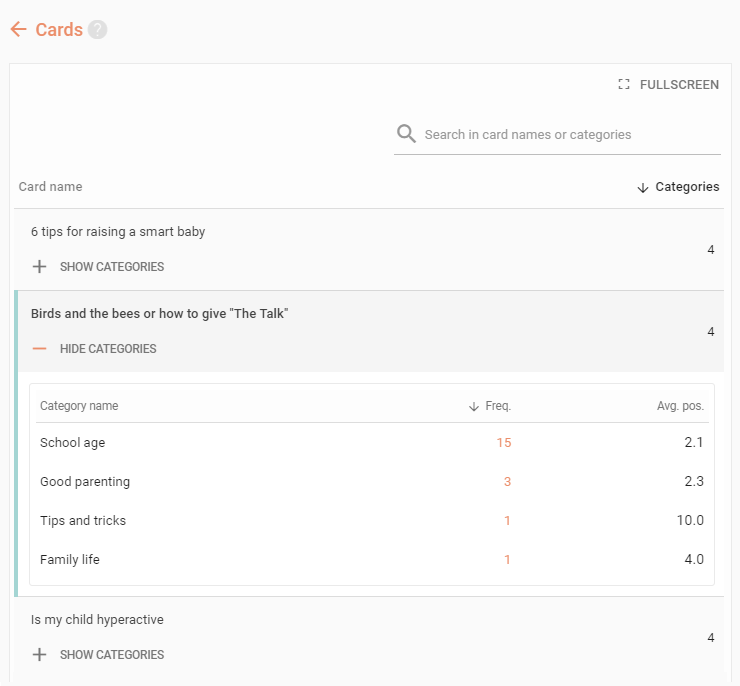
The Cards analysis displays the list of all cards in your Card Sorting.
Each card contains its name and the number of categories it was sorted into.
By default, the cards are ordered by the number of Categories in descending order; however, the order can be changed by clicking the header Categories.
The table is sorted by the column with an arrow in its header. Arrow down means descending order and arrow up means ascending order.
Press + Show categories to display a list of all categories the chosen card was sorted into.
The list of card’s categories contains the Category name, Freq. (how many times the card was sorted into this category), and Avg. pos. (the average position of the card within this category).
As with the cards list, the order of categories can be changed by clicking Freq. or Avg. pos. in the table’s header.
Click Fullscreen to display the card results in fullscreen mode.
Use the search bar to search for cards and categories.
In open or hybrid card sort, click Choose preset and select a preset you’ve created in Categories analysis to display your standardized categories instead of categories defined by the respondents.
Card list
Understand the concepts behind cards by analyzing the categories they were sorted into. This particular article, “Birds and the bees or how to give ‘The Talk'” from our case study, seems to have been rather easy to sort with certainty, as most respondents placed it into the ‘School age’ category, even if a few respondents preferred other categories instead.
Get a PDF Export of Cards analysis
You can create a PDF report of all the information listed above, exactly like you can see in the web interface. To create an export, click PDF Export in the upper right corner of the tab contents.
If you wish to create a report using more than one section of your study’s results, go to the Export tab.
We need your consent to use cookies
on our website to provide you with the highest level of service.
You can change the settings by clicking the "Settings" button.
These cookies are necessary to ensure the operation and basic functions of the UXtweak website.
They store information about your UXtweak session and help protect your privacy.
Analytics cookies
These cookies are used to analyze traffic on our website, so that we can better understand our users
and improve the site's content, usability and functionality.