In this help, we’ll discuss how to use the Tasks tab to:
Create five-second testing tasks
Adjust the order and number of tasks
Create follow-up questionnaires
Create five-second testing tasks
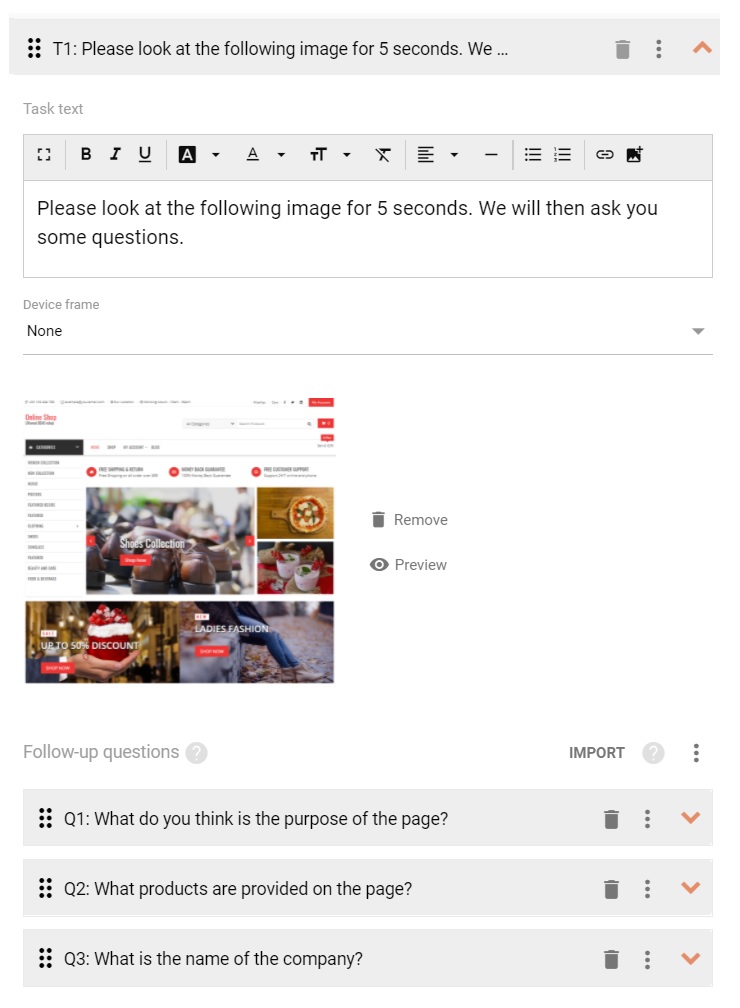
Each task in a five-second test is aimed at finding what first impressions the users get from viewing a picture, such as the design of a web page. According toresearch, the first few seconds determine whether a visitor stays on a website. A task in five-second testing has the ability to mimic the same type of first-time viewing experience and help you get insight on what’s going through people’s heads when they see your design, website or product.
The tasks include a generic text that should work in most cases. (“Please look at the following image for 5 seconds. We will then ask you some questions.”) However, if a more specific text works for your case, we recommend that you make use of your ability to customize the text to your liking.
Set the device frame if you’re testing mobile designs and the respondents on desktop will see what the design would look like if framed within the specified type of device.
The designs that you can import may be JPG/JPEG, PNG or GIF and up to 5MB in size.
To insert more tasks into the five-second test, clickAdd another task
By default, respondents can’t skip tasks. You can enable them to skip tasks by checkingAllow respondents to skip tasks
By default, the pictures are shown to respondents for 5 seconds. You may customize the number of seconds. However, please be aware that beyond the first 5 seconds, the respondents may come with conclusions that they wouldn’t come to through natural observation.
Show remaining time to respondents, the remaining time may be shown to the respondents as a timer above the picture.
Simple and versatile setup
In UXtweak you can easily set up a remote five second study with customizable instructions and for each design you can add several questions.
Adjust the order and number of tasks and the order of designs
Unless the order of tasks is randomized, the respondents solve tasks in the order they’re listed in
To move a task up or down on the list, simply drag-and-drop it to the desired destination. Alternatively, use theMove up/downbuttons under the ellipsis button
To show the tasks to respondents in different order, selectRandomize task order
The same logic applies to the order of designs. You can randomize the order of designs by checkingRandomize designs order
To keep the first task static (e.g. to use it as an example), checkDon’t randomize the first task
If the order of tasks is randomized, by changingNumber of tasks to show to a respondent, you can show every respondent only a certain number of tasks from the total number of tasks available
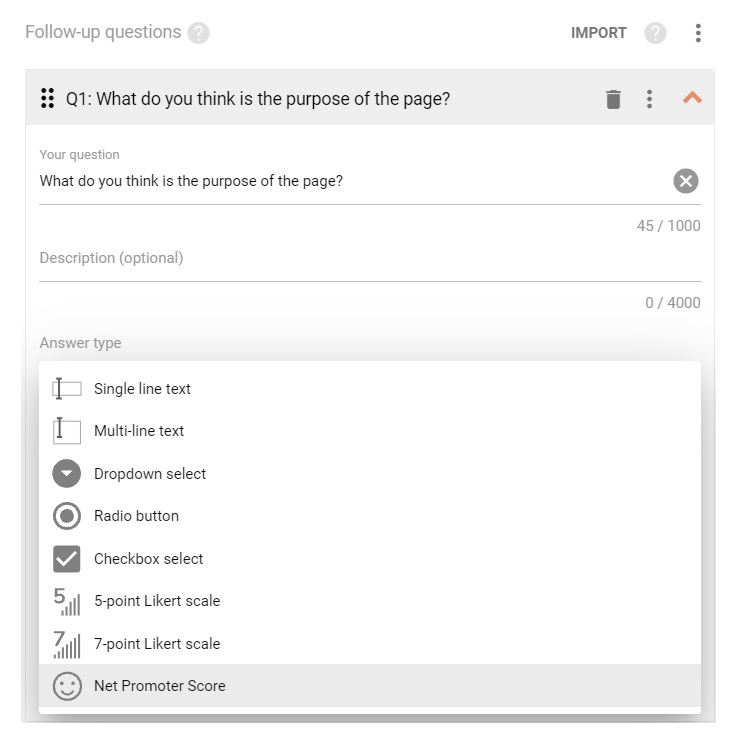
Choose from a wide range of questions formats
Based on what designs you are testing and why, you will want to ask different types of questions.
Create follow-up questionnaires
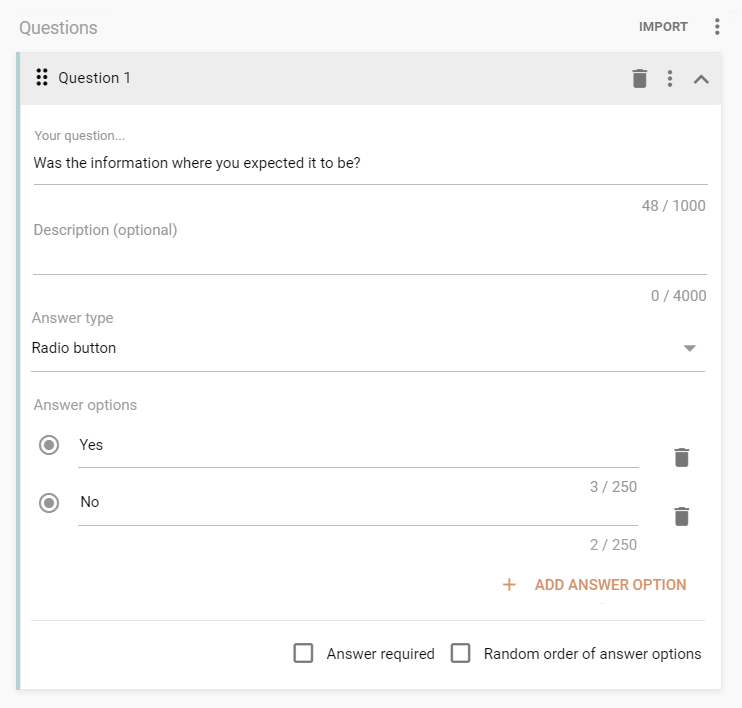
The follow-up questions allow you to collect feedback from the five-second test from the respondents. Ask the respondents things such as what they saw, what they thought of it, or questions that test whether the respondent remembers a specific piece of information that the design is supposed to convey.
We need your consent to use cookies
on our website to provide you with the highest level of service.
You can change the settings by clicking the "Settings" button.
These cookies are necessary to ensure the operation and basic functions of the UXtweak website.
They store information about your UXtweak session and help protect your privacy.
Analytics cookies
These cookies are used to analyze traffic on our website, so that we can better understand our users
and improve the site's content, usability and functionality.