




How do I use Interview participant results?
The Interview participant results provide everything you need to review and analyze an individual interview. Watch the recording, work with the transcript, create notes and highlights, review participant information and AI-generated insights, edit captions, and export the recording and analysis data.
This section covers how to:
- Navigate between participants
- Navigate through the recording
- Work with the transcript
- Add notes and highlights
- Use tags in highlights
- Review Participant details
- Use the Recording outline
- Edit and manage captions
- Set a thumbnail
- Export the recording and data
- Manage additional participant options
Navigate between participants
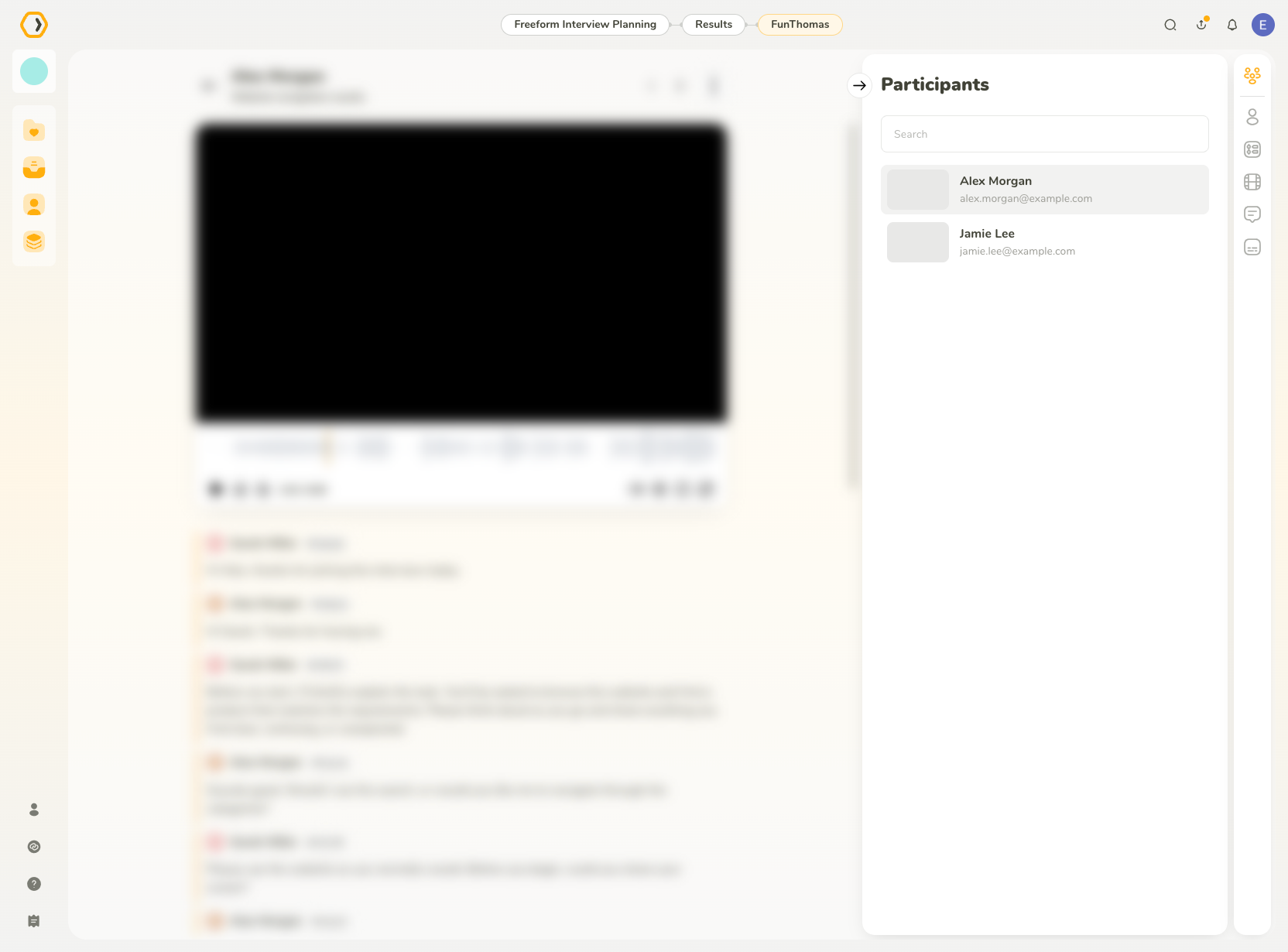
Use the left and right arrows at the top of the participant results to move to the previous or next participant.
You can also open the Participants tab in the right sidebar. The panel displays participants in the study and lets you switch directly to another participant without returning to the overall study results.
Navigate through the recording
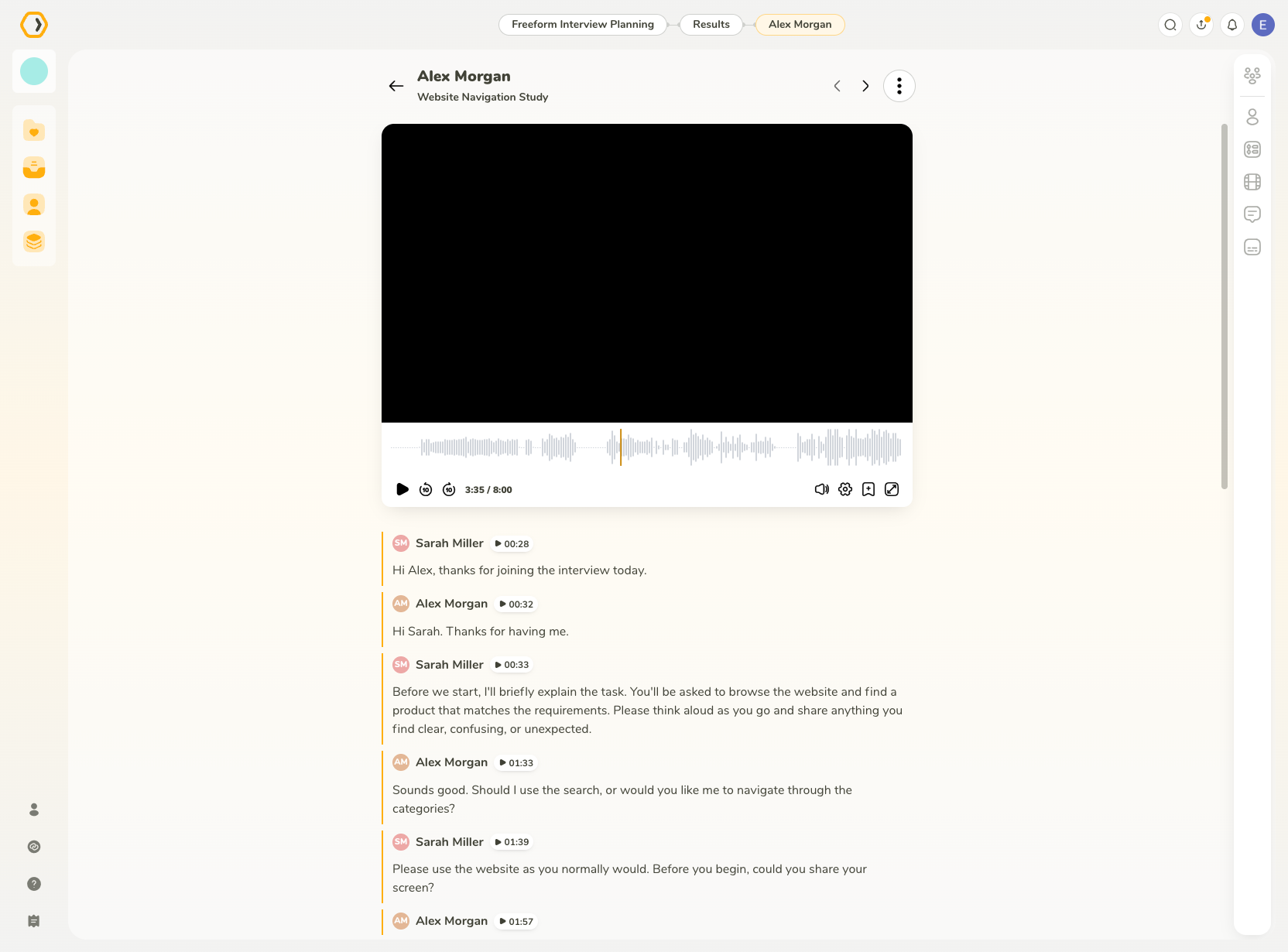
Play back the interview recording using the player at the top of the participant results. Use the timeline to jump to a specific section of the recording or skip backward and forward in 10-second intervals.
You can also adjust the playback speed of the recording.
Adjust the playback speed
Choose the playback speed suitable for your analysis. You can adjust it from 0.5× to 2×.
Zoom the timeline
Use the zoom control or supported gestures to zoom the recording timeline in or out.
Floating video player
When you scroll down and the main player leaves the visible area, the recording automatically opens in a floating player.
You can move the floating player to any corner of the screen, minimize it, or restore it while continuing to work with the participant results.
Work with the transcript
The interview transcript is displayed directly underneath the recording.
While the recording is playing, the words currently being spoken are highlighted in the transcript. The transcript does not automatically scroll during playback.
Edit the transcript
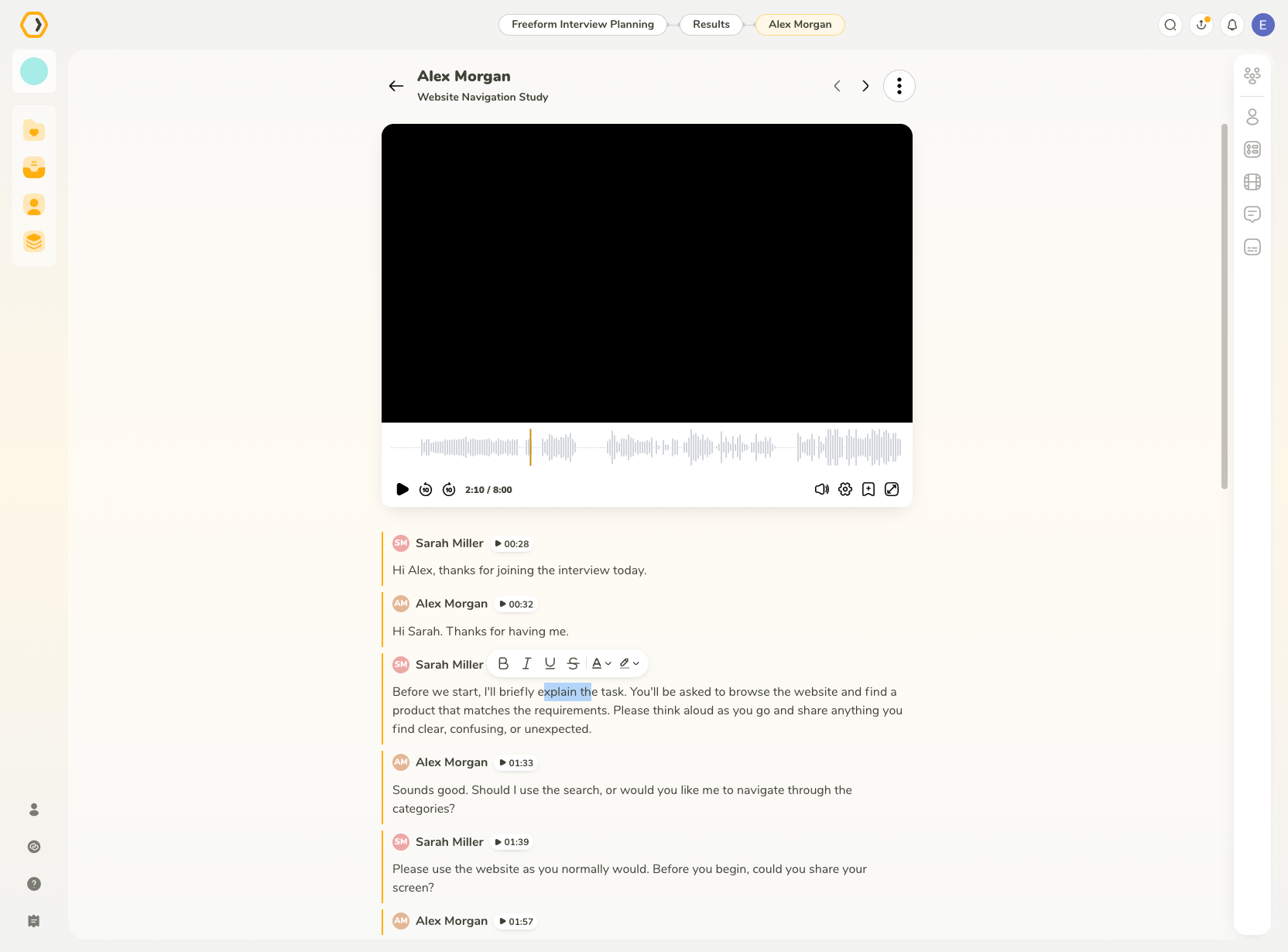
The transcript is fully editable. You can edit or format its text, delete transcript blocks, and add your own content between them.
Transcript blocks remain in their original chronological order and cannot be reordered.
Add content blocks
You can add the same types of content blocks available in the Insight Editor between transcript blocks.
Learn more about Content Blocks.
Add notes and highlights
Notes and highlights help you capture important observations and moments from the interview.
Notes created by Moderators and Note-takers during the interview are available in the participant results. You can edit them, remove them, and add new notes during your analysis.
Highlights save selected parts of the recording. They can be watched directly in the study results or exported as MP4 clips.
Notes and highlights now have their own separate tabs in the participant results.
Add notes
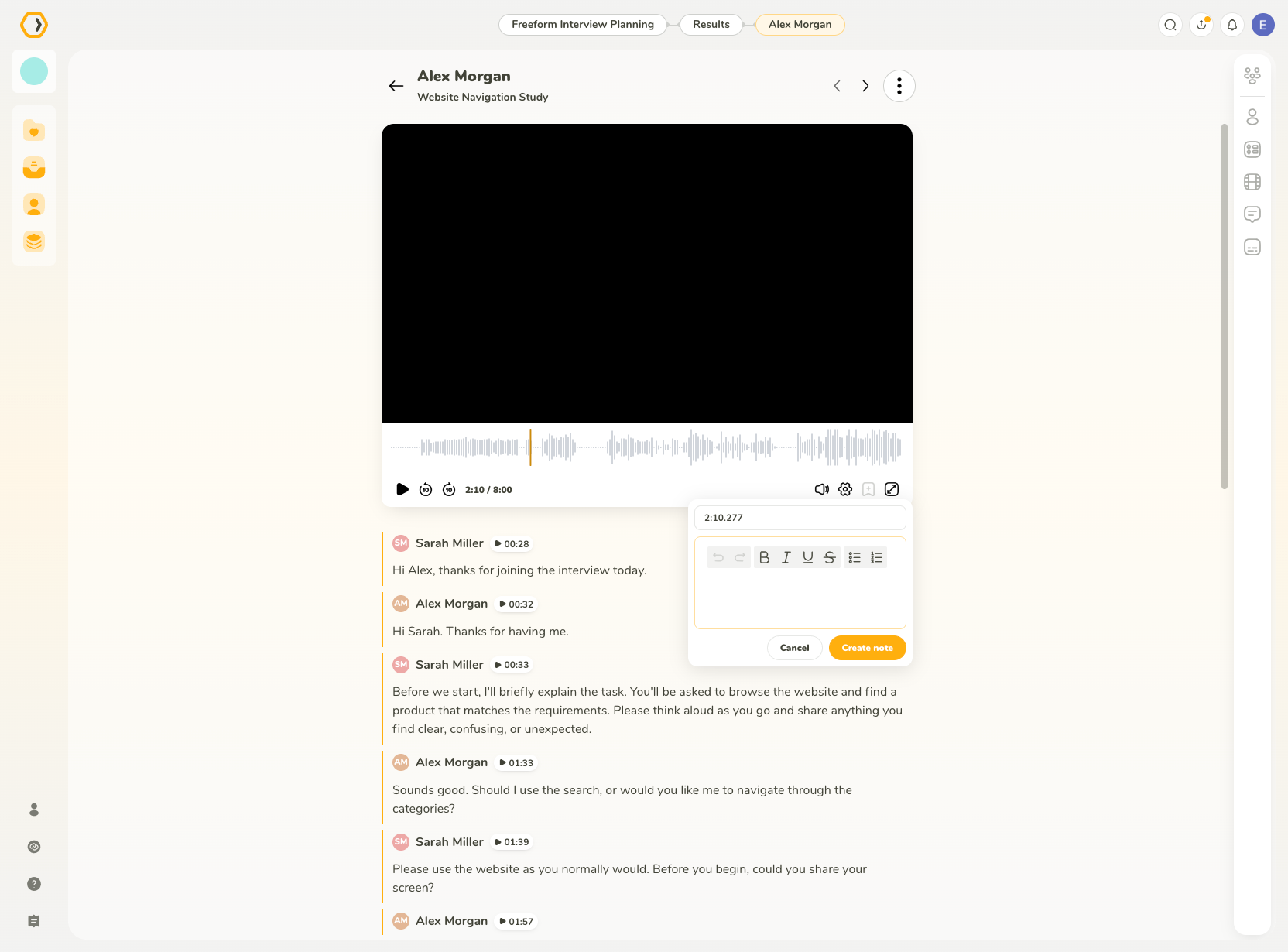
To add a note, navigate to the relevant moment in the recording and click Add note. The note is associated with the current timestamp.
Existing notes can be edited or removed.
A note represents a specific point in the recording, while a highlight represents a selected time range.
Create highlights manually
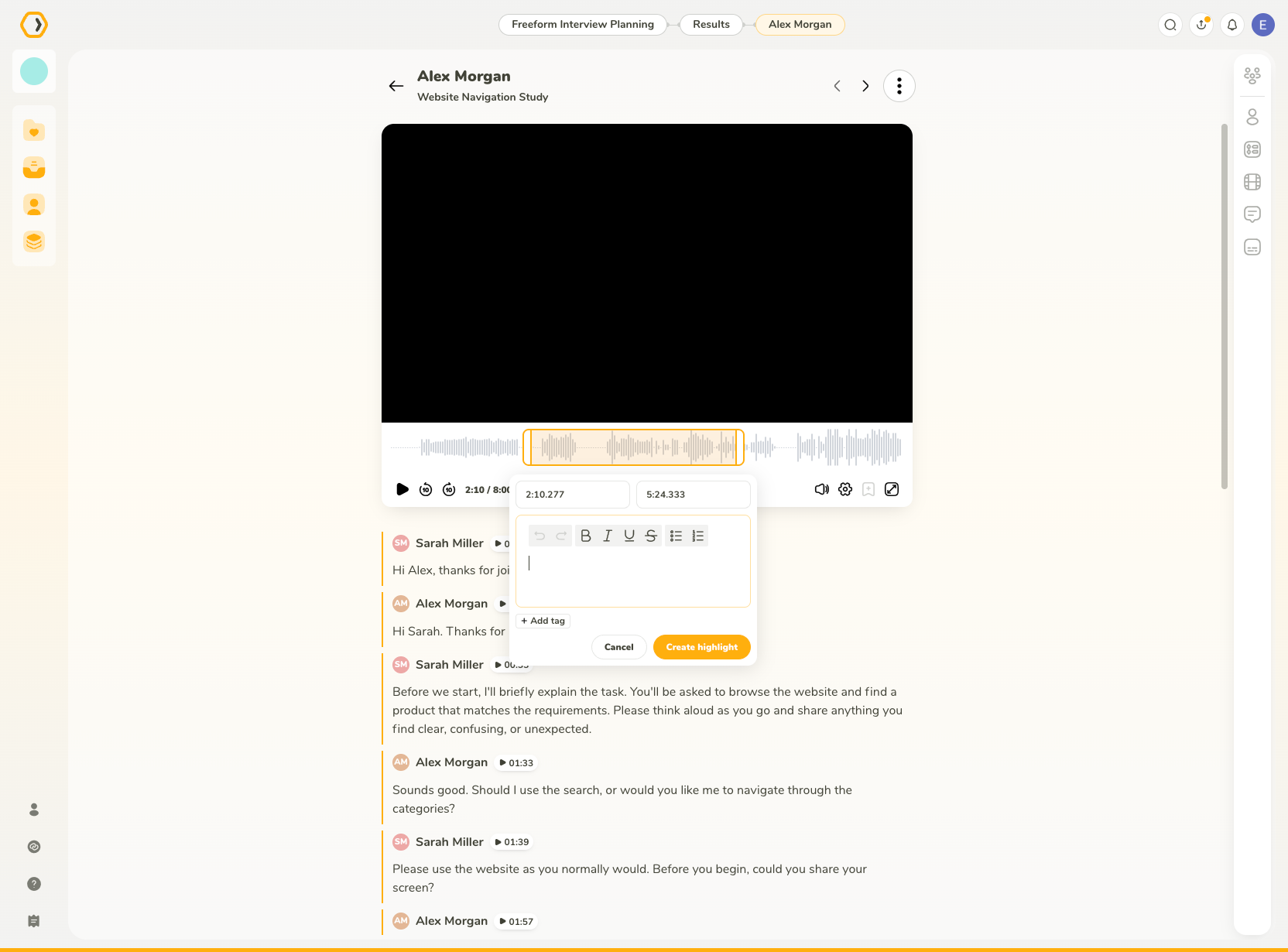
You can create highlights directly from the timeline underneath the recording.
To create a highlight:
- Drag across the timeline to select the part of the recording you want to highlight.
- Adjust the starting and ending timestamps manually if needed.
- Enter the highlight text.
- Format the text using the available formatting controls.
- Add tags if needed.
- Click Create highlight.
Existing highlights can be edited later, including their text, formatting, time range, and tags.
Suggest highlights with AI
You can use AI to automatically suggest highlights from the interview recording.
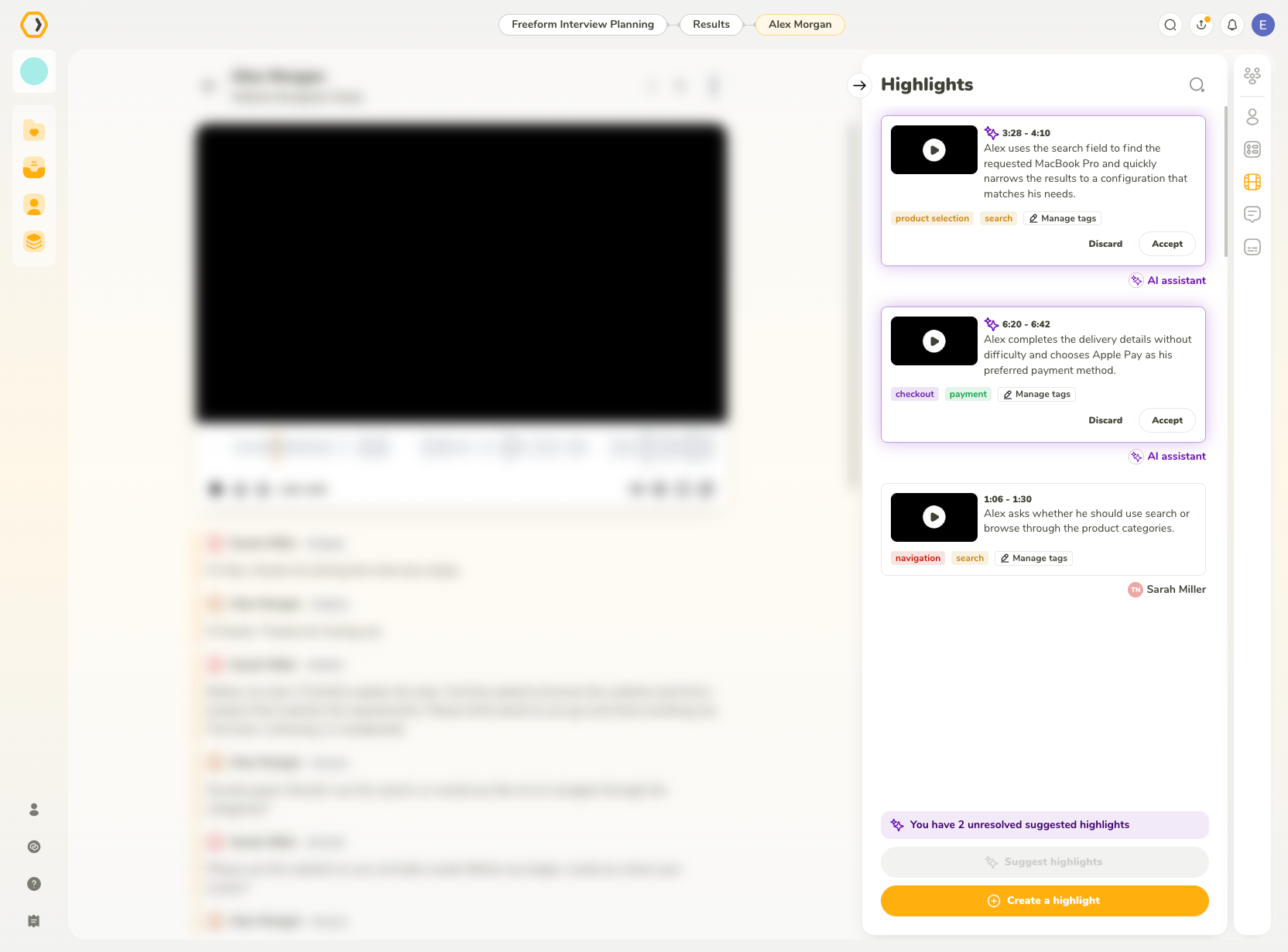
Click Suggest highlights in the Highlights tab. Suggested highlights are marked with a purple glow.
If the transcript required for AI processing is already available, UXtweak starts generating suggestions immediately. If it is not ready yet, it is generated first and the highlight suggestions are created afterward.
Once ready, suggested highlights appear directly in the Highlights tab and are visually distinguished from regular highlights.
Each suggested highlight can be reviewed individually. You can either:
- Accept the suggested highlight to save it.
- Discard the suggested highlight if it is not useful.
You need to accept or discard existing suggested highlights before you can request another set of suggestions.
Suggested highlights cannot be edited before they are accepted. To adjust their text, timing, formatting, or tags, accept the suggestion first and then edit the resulting highlight.
After you accept an AI-suggested highlight, it remains marked as AI-assisted. The AI assistant is displayed as a collaborator below the highlight together with an AI icon.
Use tags in highlights
Tags help you organize highlights by topic, behavior, issue, insight, or another category relevant to your analysis.
Tags are shared within the same study, allowing you to reuse them across highlights from different participants.
When AI suggests highlights, tags can be added automatically. Suggested highlights may use tags that already exist in the study or introduce new tags.
Tags can also be managed manually for each highlight.
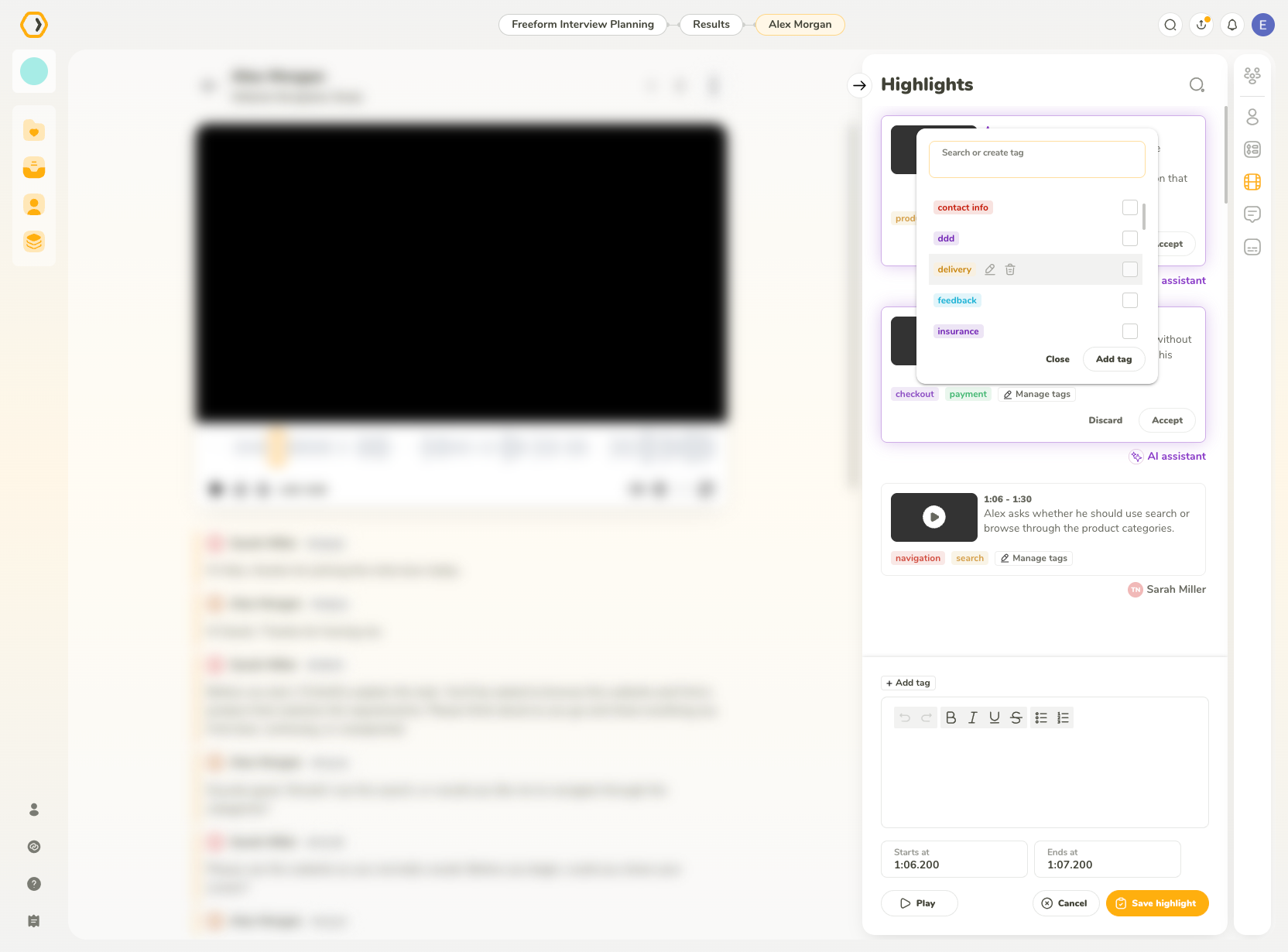
Add existing tags to a highlight
To add an existing tag:
- Open the tag controls for the highlight.
- Search for the tag you want to use.
- Select the tag from the list.
The selected tag is added to the highlight.
Create a new tag
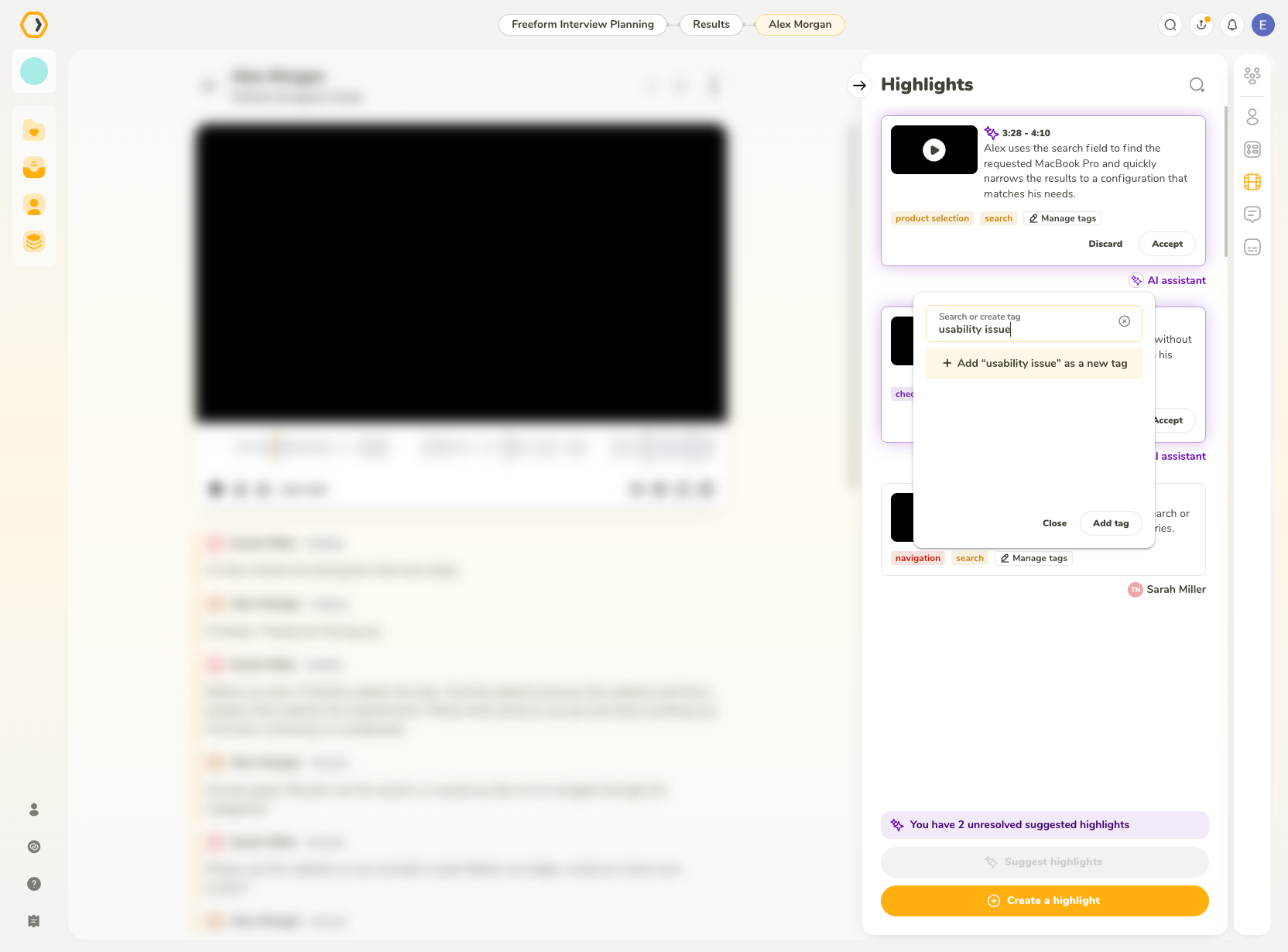
You can create a new tag directly while managing the tags of a highlight.
To create a tag:
- Open the tag controls for the highlight.
- Type the tag name into the Search or create tag field.
- Press Enter or click Add tag.
The tag is created and automatically added to the current highlight. A random color is assigned to it.
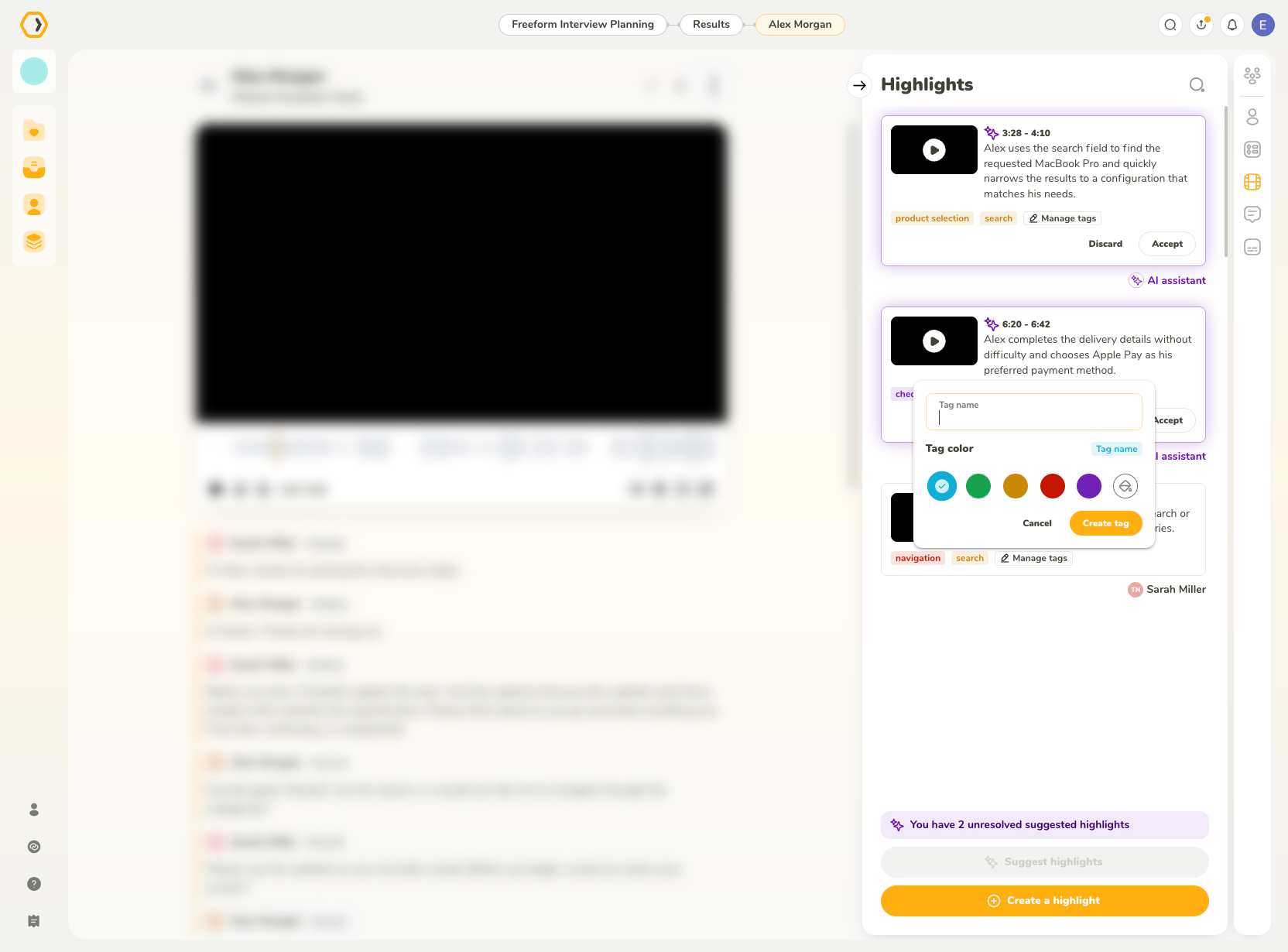
You can also click Add tag with an empty search field to open the tag editor, where you can enter the tag name and choose its color before creating it.
Edit tag name and color
To edit a tag, hover over it and click the edit icon.
In the tag editor, you can:
- Rename the tag
- Choose one of the predefined colors
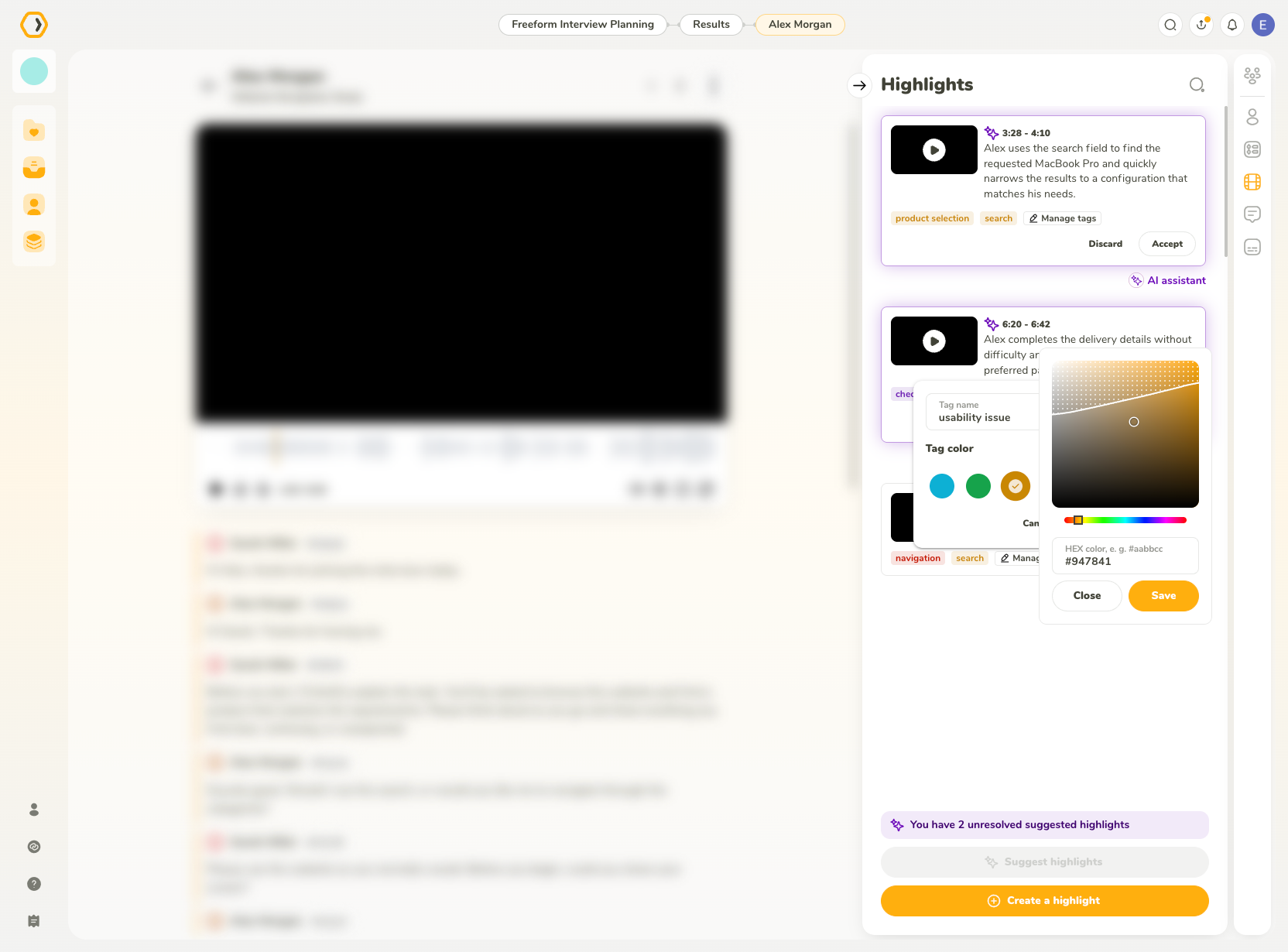
- Select a custom color using the color picker
- Enter a custom hex color value
Changes to a tag are applied everywhere the tag is used within the study.
The color picker includes a contrast guide to help maintain readable tag colors.
Remove tags from a highlight
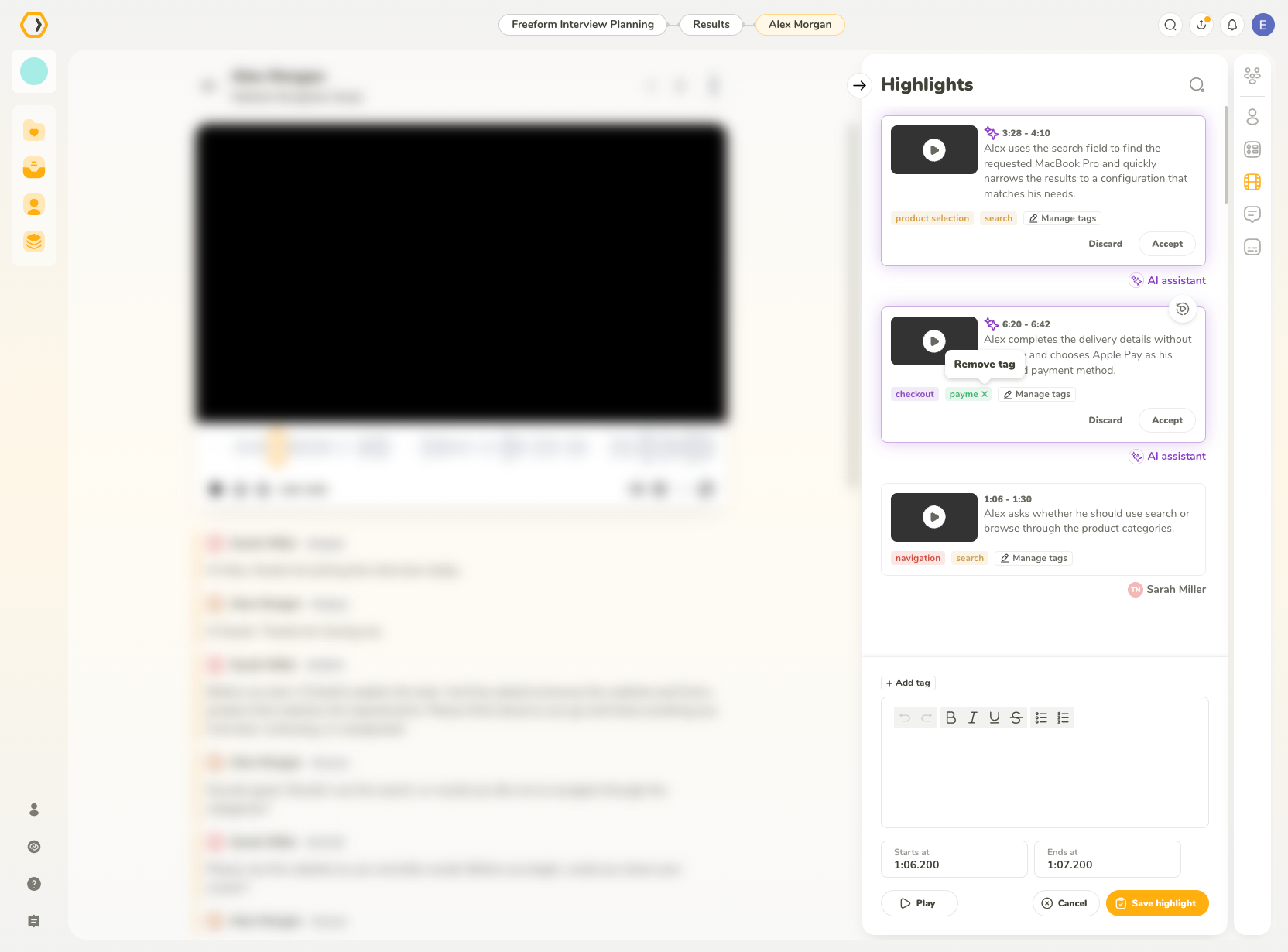
You can remove a tag from a highlight by opening its tag controls and deselecting the tag, or by hovering over the tag directly in the highlight and clicking the X button.
If an AI-generated tag is no longer used by any highlight in the study, it is deleted automatically.
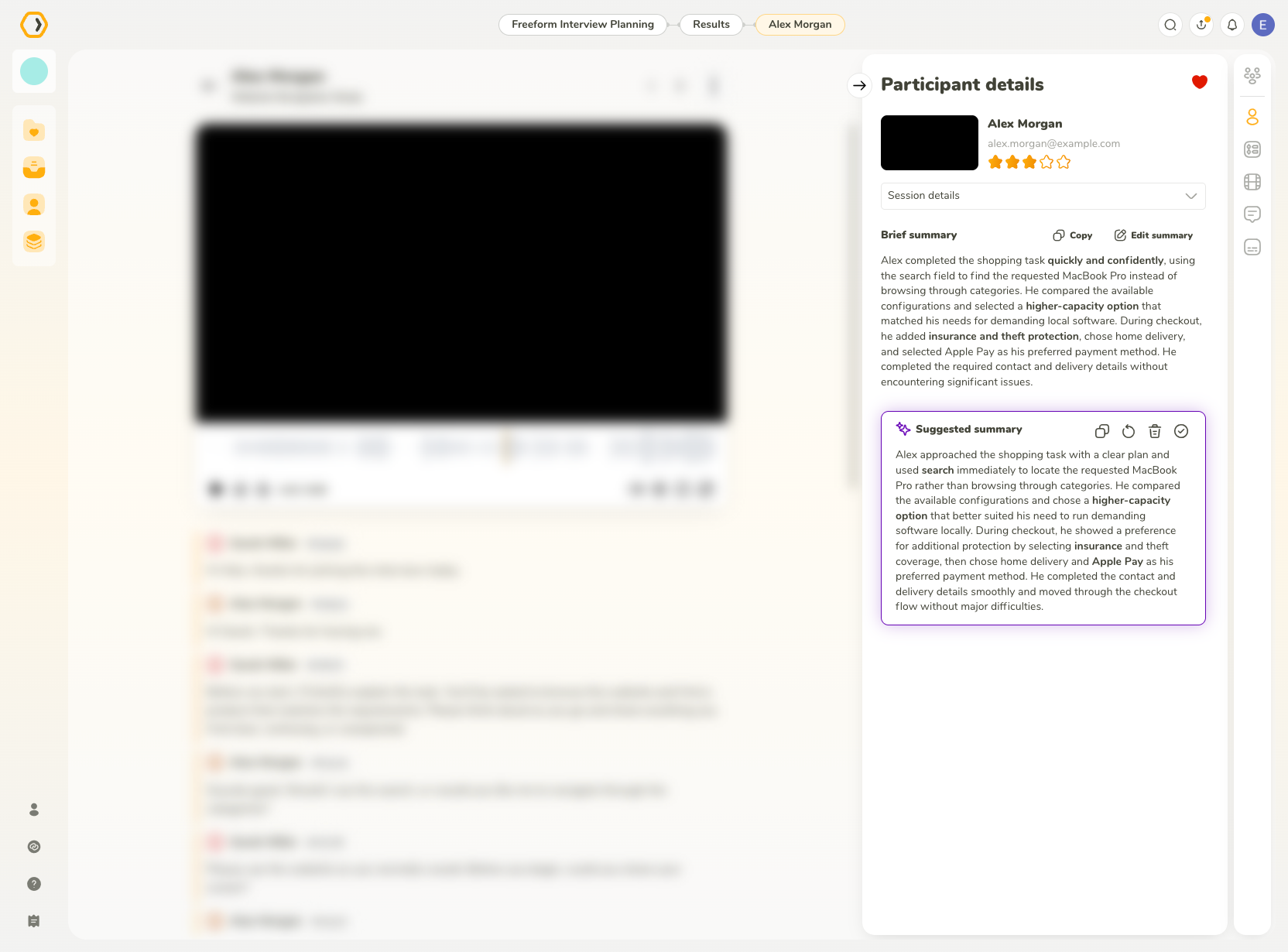
Review Participant details
Open the Participant details tab to access information about the participant and their interview.
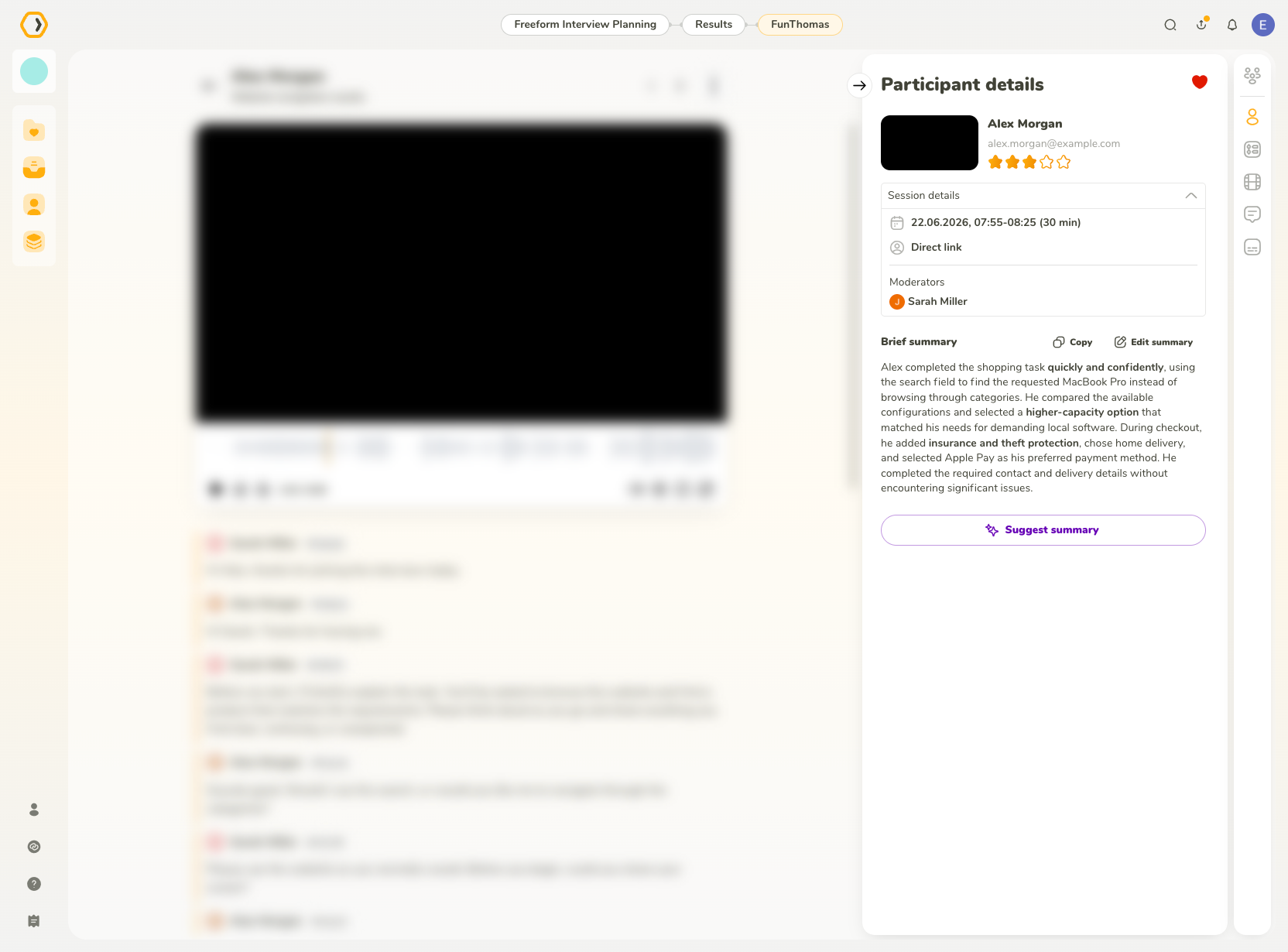
Participant information includes:
- Their name
- Whether they are included in favorites
- Their rating
- Their email
- Details about their time slot
- The source from which they were recruited
- Colleagues who were present as Moderators, Note-takers, or Observers
- Length of the interview
- Number of notes
- Device details
Session-related information is grouped into a collapsible section.
Brief summary
The Brief summary is displayed directly in Participant details and remains visible independently of the collapsible session information.
You can edit the participant’s interview summary at any time.
AI-generated summaries
You can use AI to automatically suggest a summary of the participant’s interview.
Click Suggest summary to generate a suggestion. Once the AI-generated summary is available, you can:
- Copy the suggested summary to your clipboard
- Regenerate it to create a new version
- Delete the suggestion
- Accept the AI summary to save it as the participant’s summary
You can edit, rewrite, or correct the summary manually at any time, including after accepting an AI-generated version.
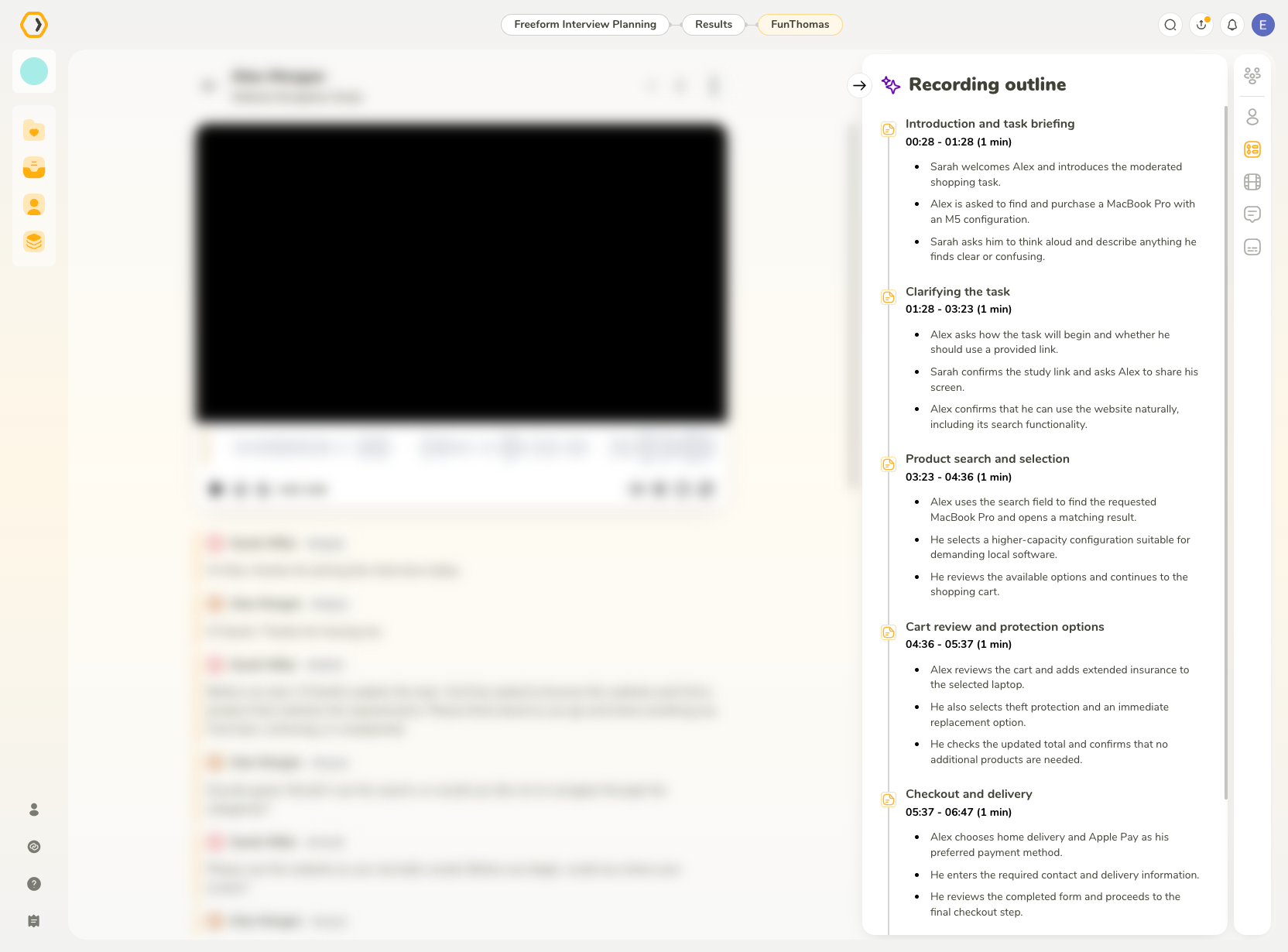
Recording outline
The Recording outline is automatically generated after the interview transcription is ready. It provides a chronological overview of the main topics and moments in the recording.
The outline is displayed as a timeline divided into sections. Each section contains its title, time range, and a summary of the discussed points.
Select a section to jump to the corresponding part of the recording.
If changes are made to the transcription used for the outline, you can choose to regenerate the outline to reflect them or keep the existing outline.
Highlights tab
Open the Highlights tab to review and manage highlights created for the participant.
The tab contains manually created highlights as well as AI-suggested highlights waiting for review. From here, you can review, edit, tag, accept, or discard highlights depending on their type.
Highlights are now displayed separately from notes.
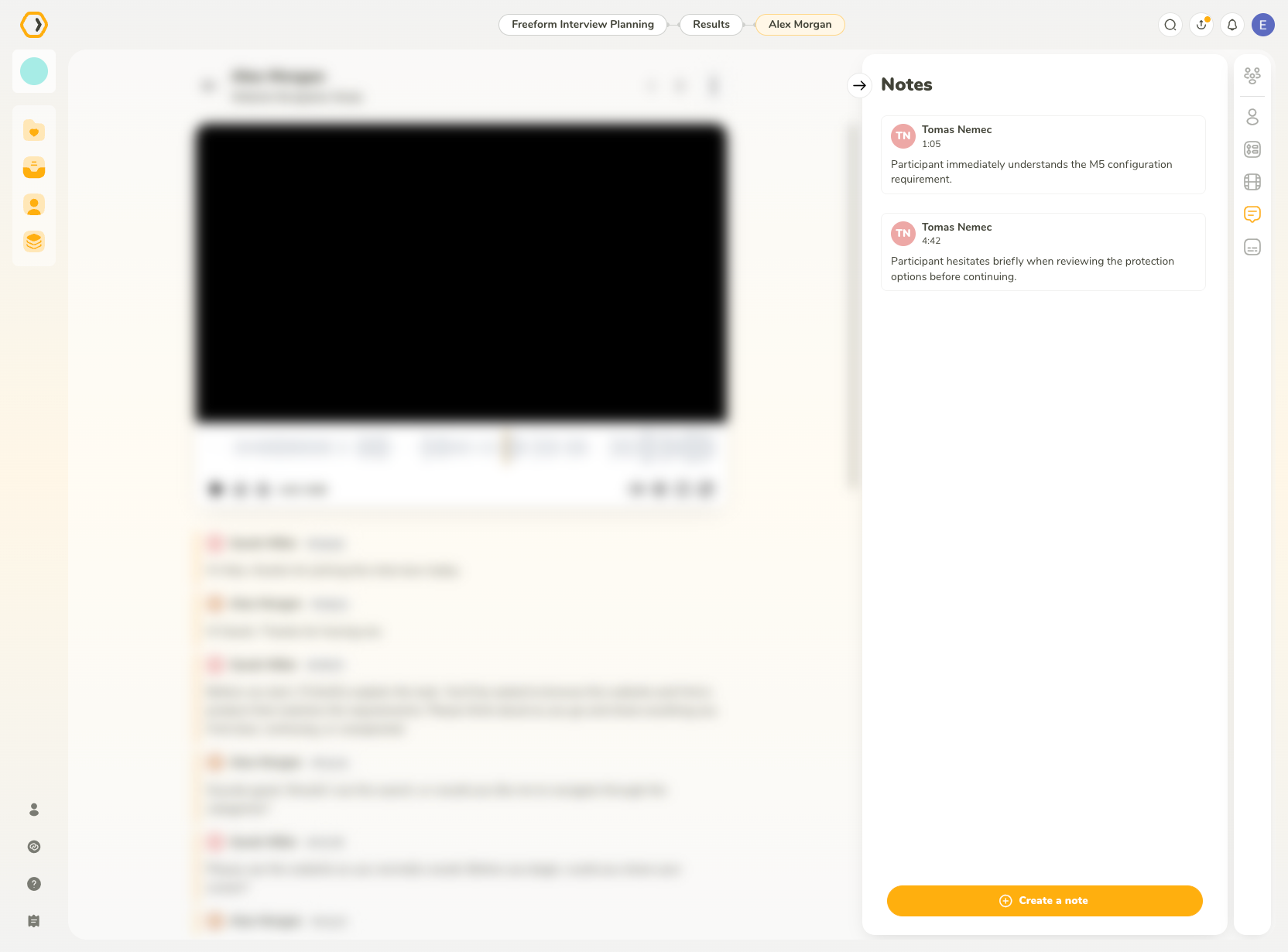
Notes tab
Open the Notes tab to review notes associated with the participant’s interview.
This includes notes created during the interview as well as notes added later during analysis. You can open, edit, or remove existing notes and navigate to their corresponding points in the recording.
Notes are now displayed separately from highlights.
Captions
Open the Captions tab to review and edit the timestamped captions of the interview recording.
The Captions editor is separate from the rich transcript displayed underneath the recording. Changes made in one are not automatically reflected in the other.
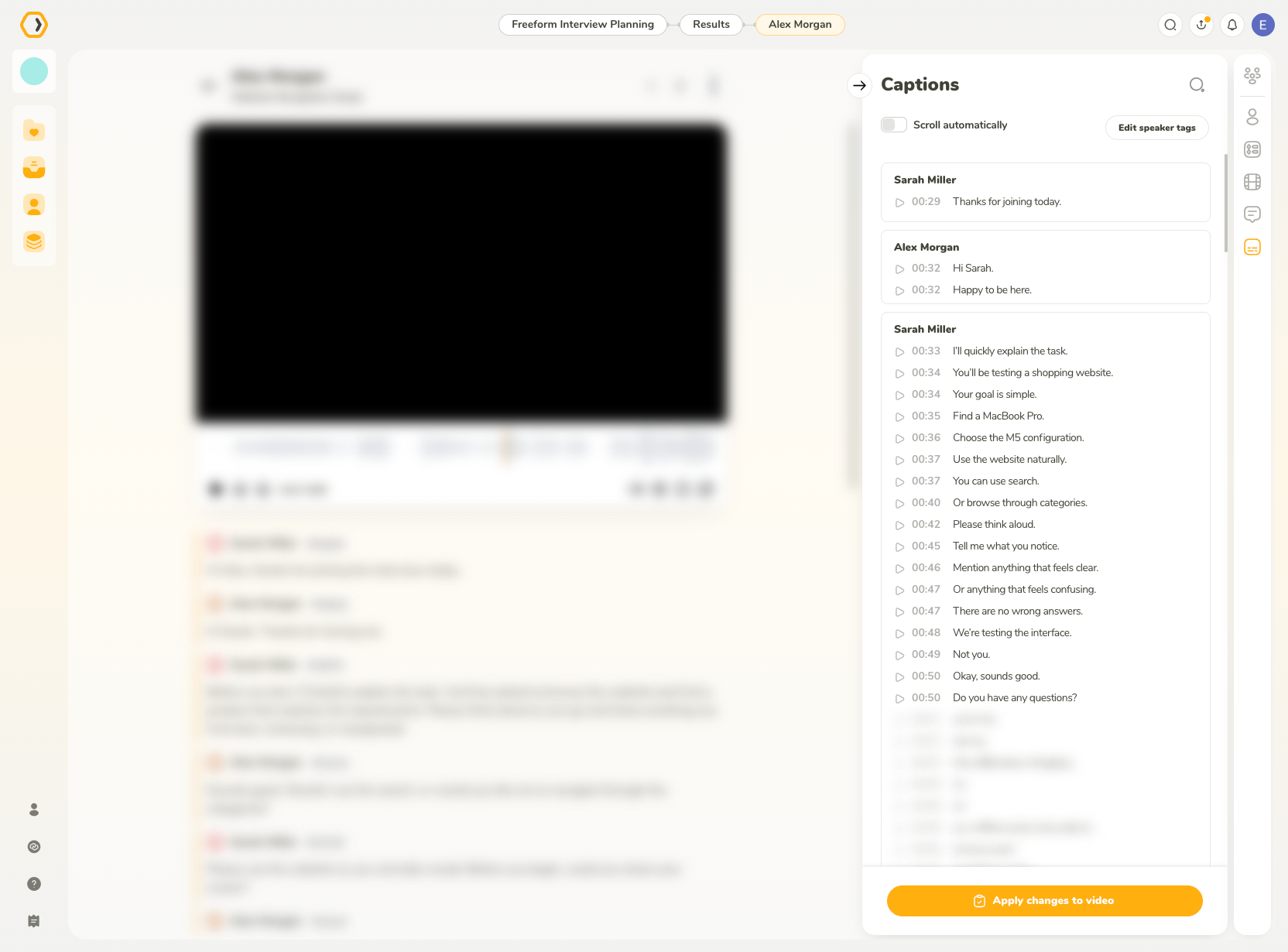
The Captions tab includes tools for editing, adding, deleting, and reviewing individual captions.
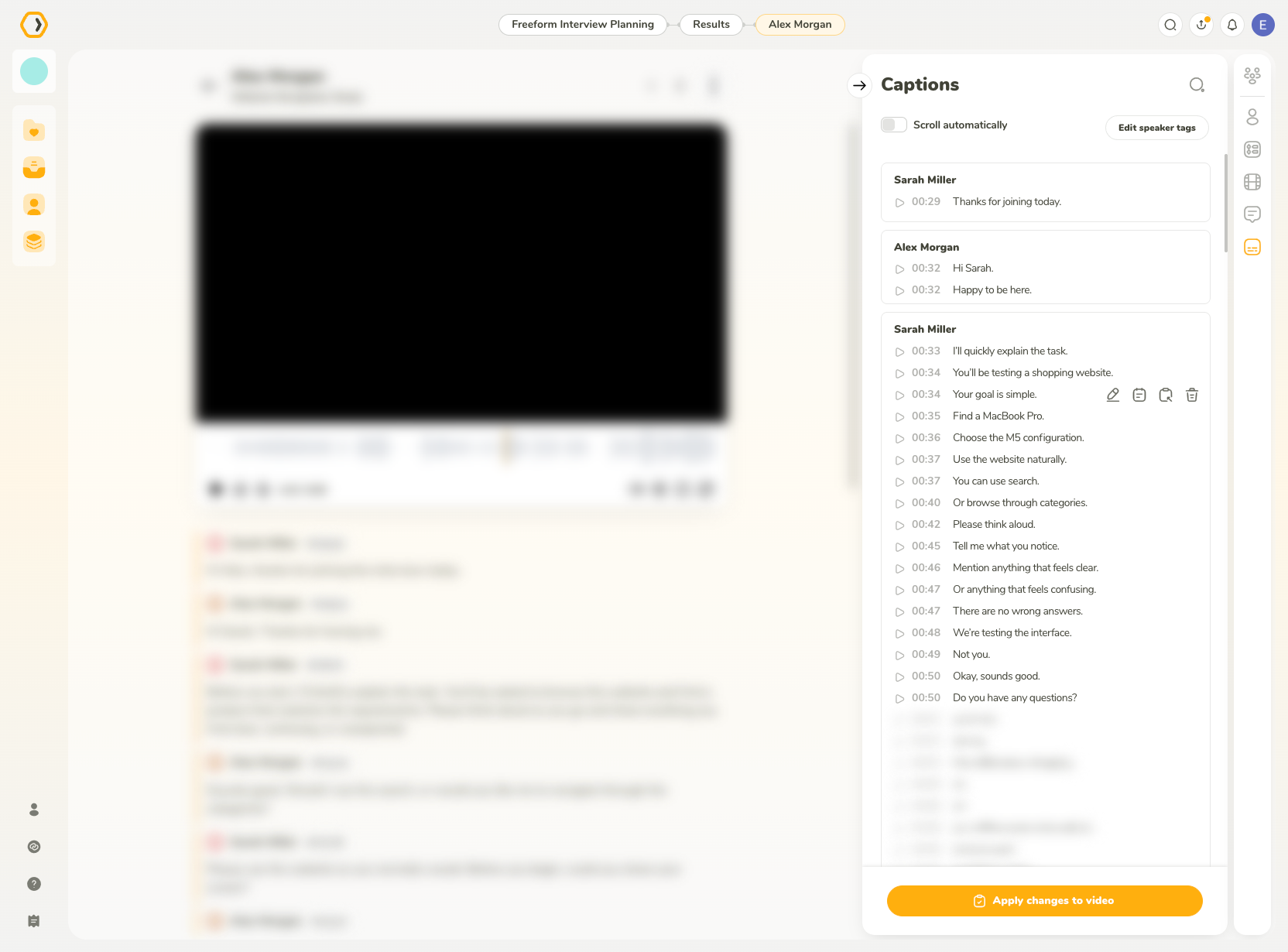
Edit captions
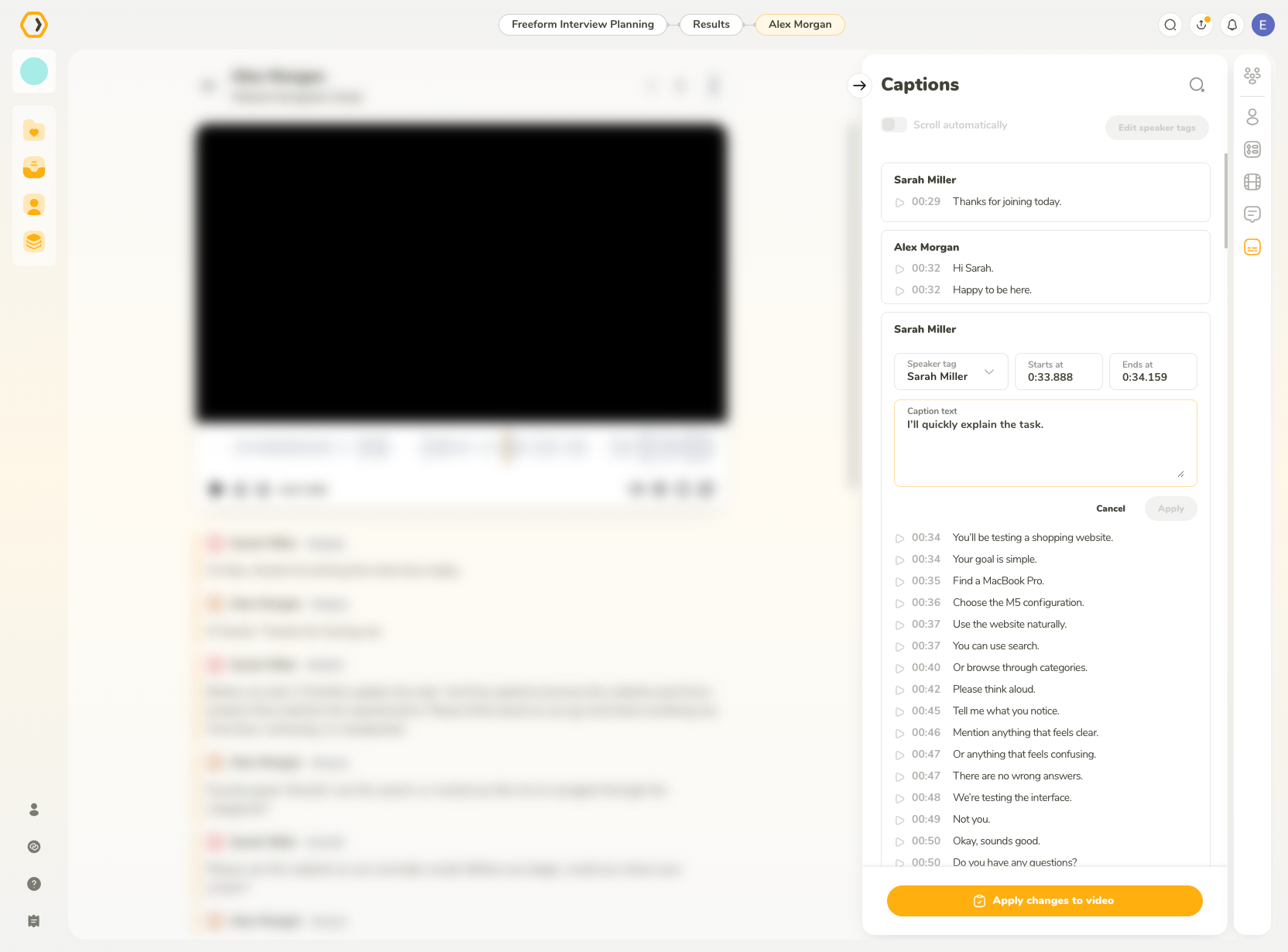
Hover over an existing caption and click the edit icon to modify its text, timing, or speaker information.
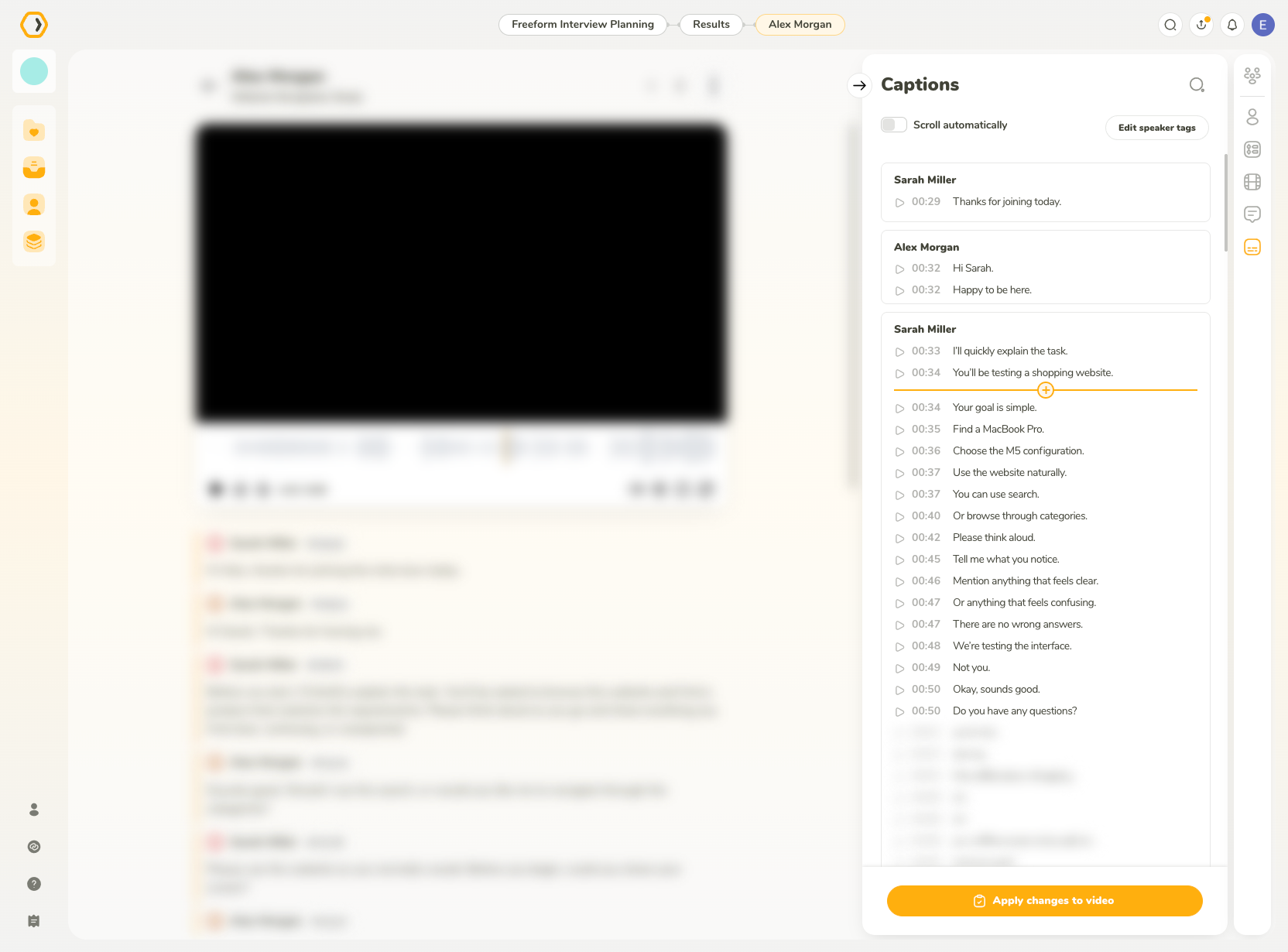
Add new captions
To add a new caption:
- Hover between two existing captions.
- Click the plus button.
- Enter the caption text.
- Adjust its timing.
- Select the appropriate speaker tag.
Delete captions
Hover over a caption and click the trash icon to remove it.
Preview captions
Click a caption to jump the recording to its corresponding timestamp.
Edit speaker tags
Click Edit speaker tags to manage the speakers assigned to captions.
Scroll automatically
Enable Scroll automatically to keep the currently playing caption visible in the Captions panel during playback.
Set thumbnail
Skip to any moment in the recording and use Set thumbnail in the player controls to use the current frame as the participant’s thumbnail.
Export the recording and data
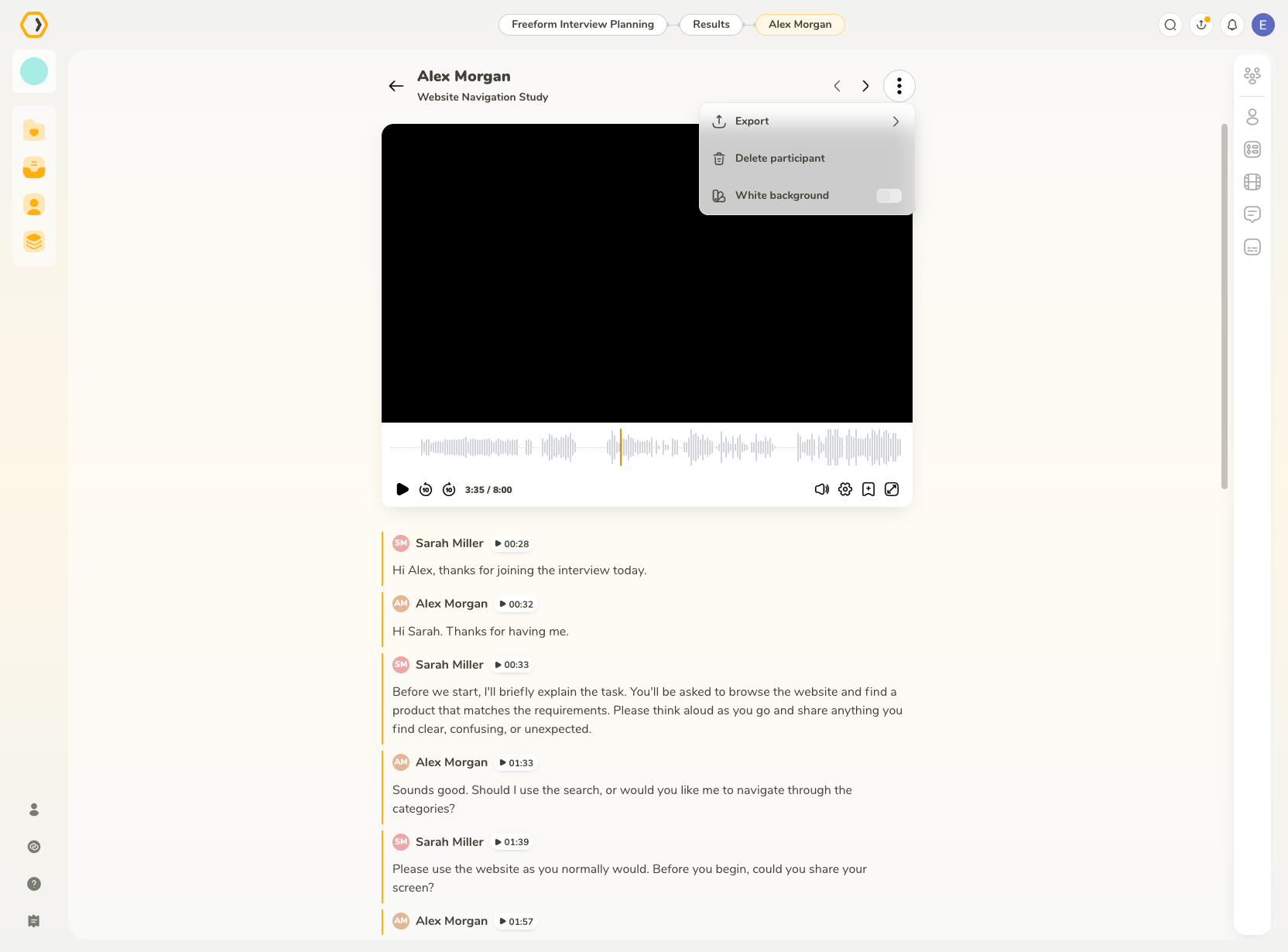
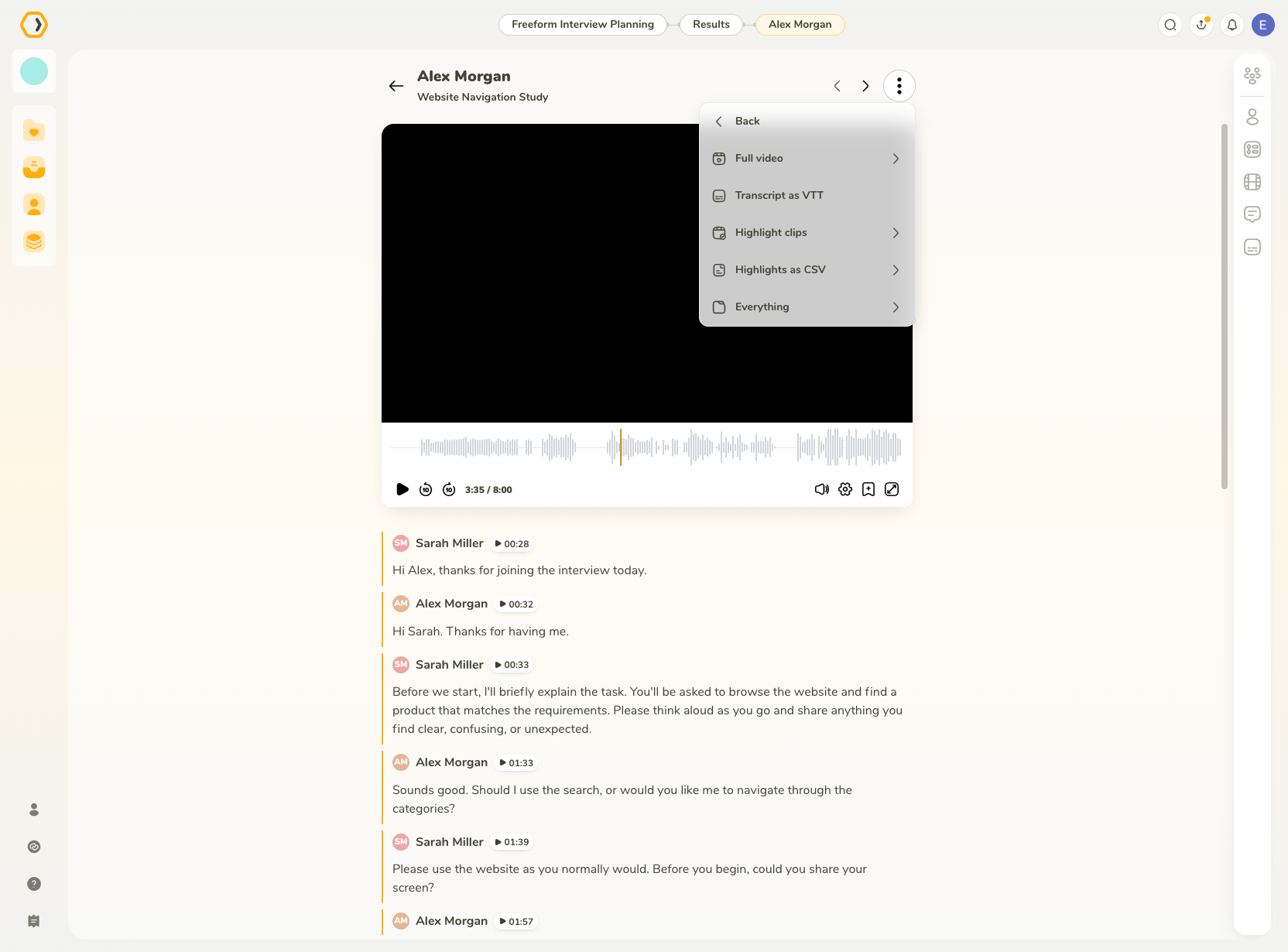
Open the three-dot menu at the top of the participant results and select Export.
You can export:
- Full video in MP4 format
- Transcript as a VTT file
- Highlight clips in MP4 format
- Notes and highlights as a CSV file
- Everything together
You can save the export:
- To your device as a ZIP file
- To Google Drive
- To OneDrive
Additional participant options
Open the three-dot menu at the top of the participant results to access additional actions.
White background
Enable White background to display a white background underneath the transcript. Disable the option to return to the default background.
Delete participant
Select Delete participant to remove the participant and their associated results.