In this help, we’ll discuss how to use the Tasks tab to:
Create tasks for your respondents to fulfill
Adjust the order and number of tasks that the respondents see
Pick the starting points and correct solutions
Create post-task questionnaires
Create tasks for your respondents to fulfill
The tasks that you create should represent specific use cases of your website or app
To write a task, simply open a task and fill in the task text
To insert more tasks into the prototype test, clickAdd task
By default, respondents can’t skip tasks. You can enable them to skip tasks by checkingAllow respondents to skip tasks
Adjust the order and number of tasks that the respondents see
Unless the order of tasks is randomized, the respondents solve tasks in the order they’re listed in
To move a task up or down on the list, simply drag-and-drop it to the desired destination. Alternatively, use theMove up/downbuttons under the ellipsis button
To show the tasks to respondents in different order, selectRandomize task order
To keep the first task static (e.g. to use it as an example), checkDon’t randomize the first task
If the order of tasks is randomized, by changingNumber of tasks to show to a respondent, you can show every respondent only a certain number of tasks from the total number of tasks available
Pick the starting points and correct solutions
For each task, you need to select which design will serve as the starting point for the task
You also need to select which locations (designs) in the prototype are to be considered as correct solutions. There can be multiple correct solutions for every task
There are two ways to pick the starting point and the correct solutions –Start and end onlyandFull path match
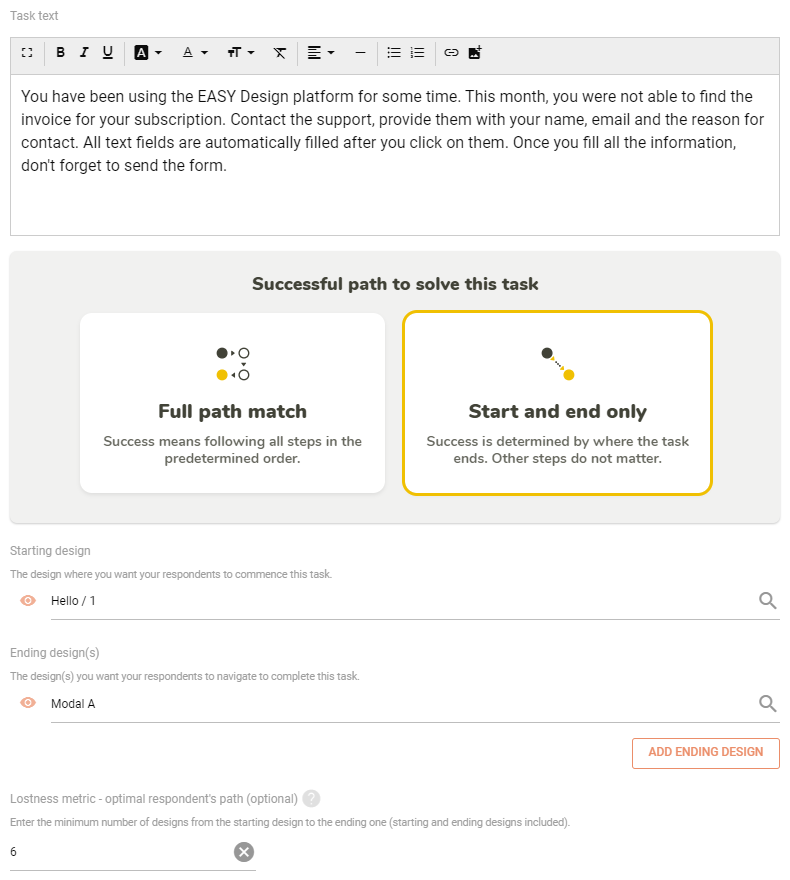
WithStart and end only, also called simple match – you choose the starting and solution designs with no regard to the paths between them.
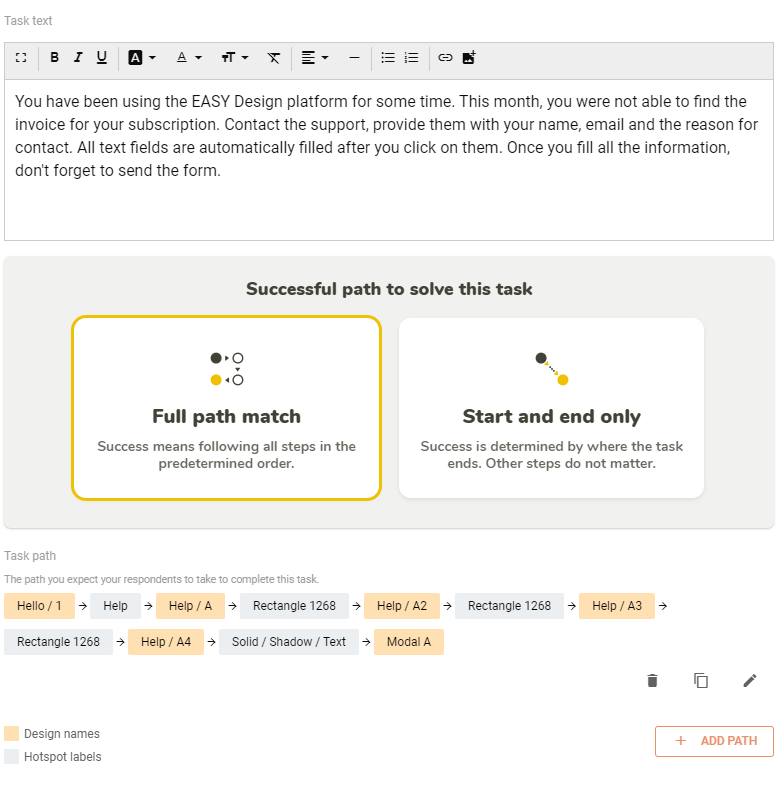
WithFull path match, you will open up your prototype and click through it to choose the exact path that the respondents should take while solving the task. The respondents will begin the task of the first design in the path.
Full path
You should choose this when you have a concrete path that you want to follow and you dont care about the start or end.
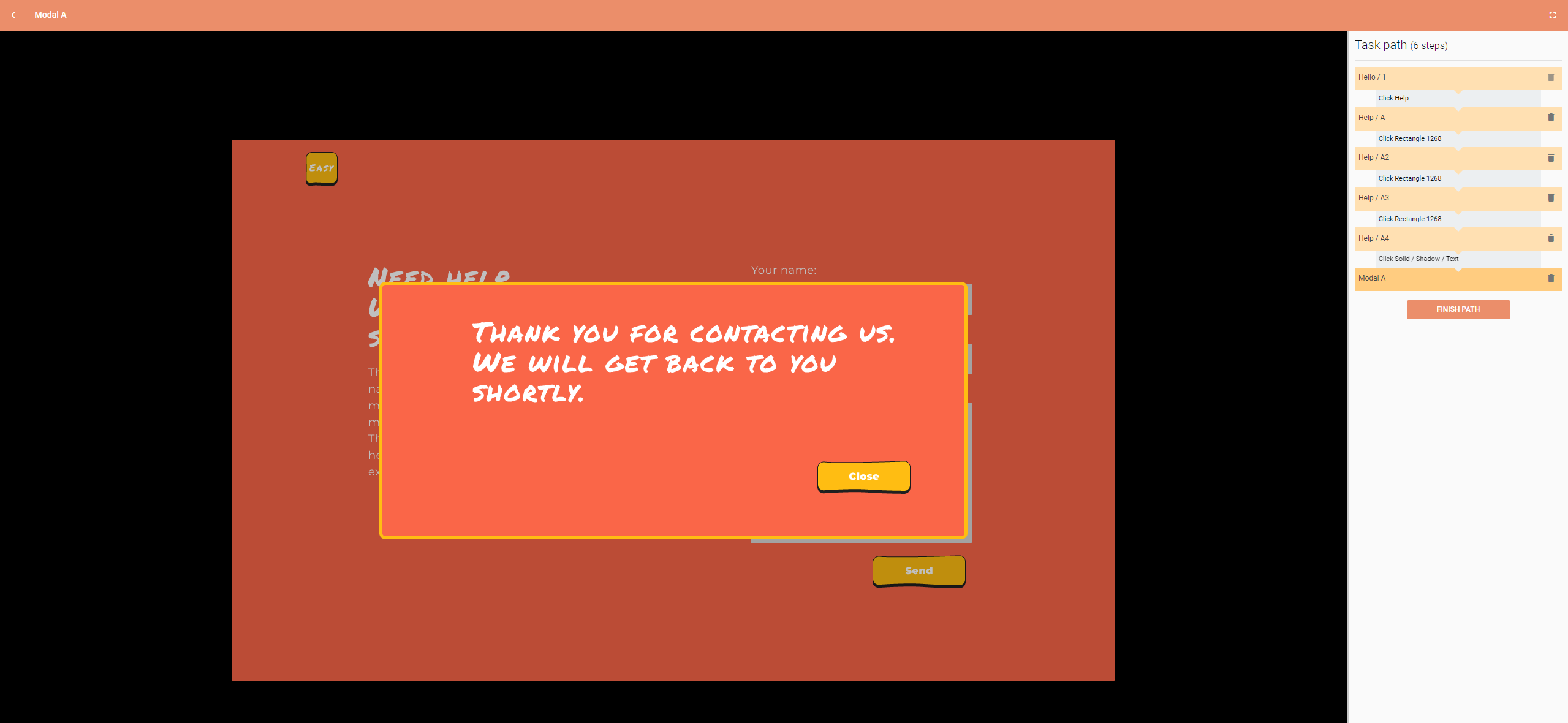
Editor
Path is being setup by clicking between designs and hotspots and the order is shown on the right side.
Start and end only
You should choose this when you are interested in start and end, it is not important how user got there.
Create post-task questionnaires
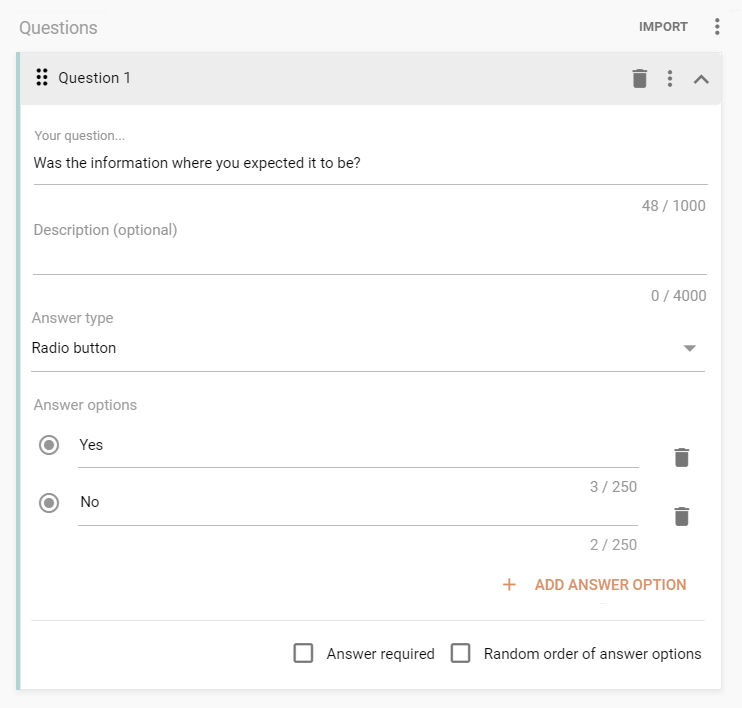
Aside from the surveys in theQuestionnaire tab, you can also ask questions immediately after each task
This is recommended for gathering immediate feedback to prevent important information about solving individual tasks being mixed up of forgotten
We need your consent to use cookies
on our website to provide you with the highest level of service.
You can change the settings by clicking the "Settings" button.
These cookies are necessary to ensure the operation and basic functions of the UXtweak website.
They store information about your UXtweak session and help protect your privacy.
Analytics cookies
These cookies are used to analyze traffic on our website, so that we can better understand our users
and improve the site's content, usability and functionality.