




Monitoring recruiting in progress
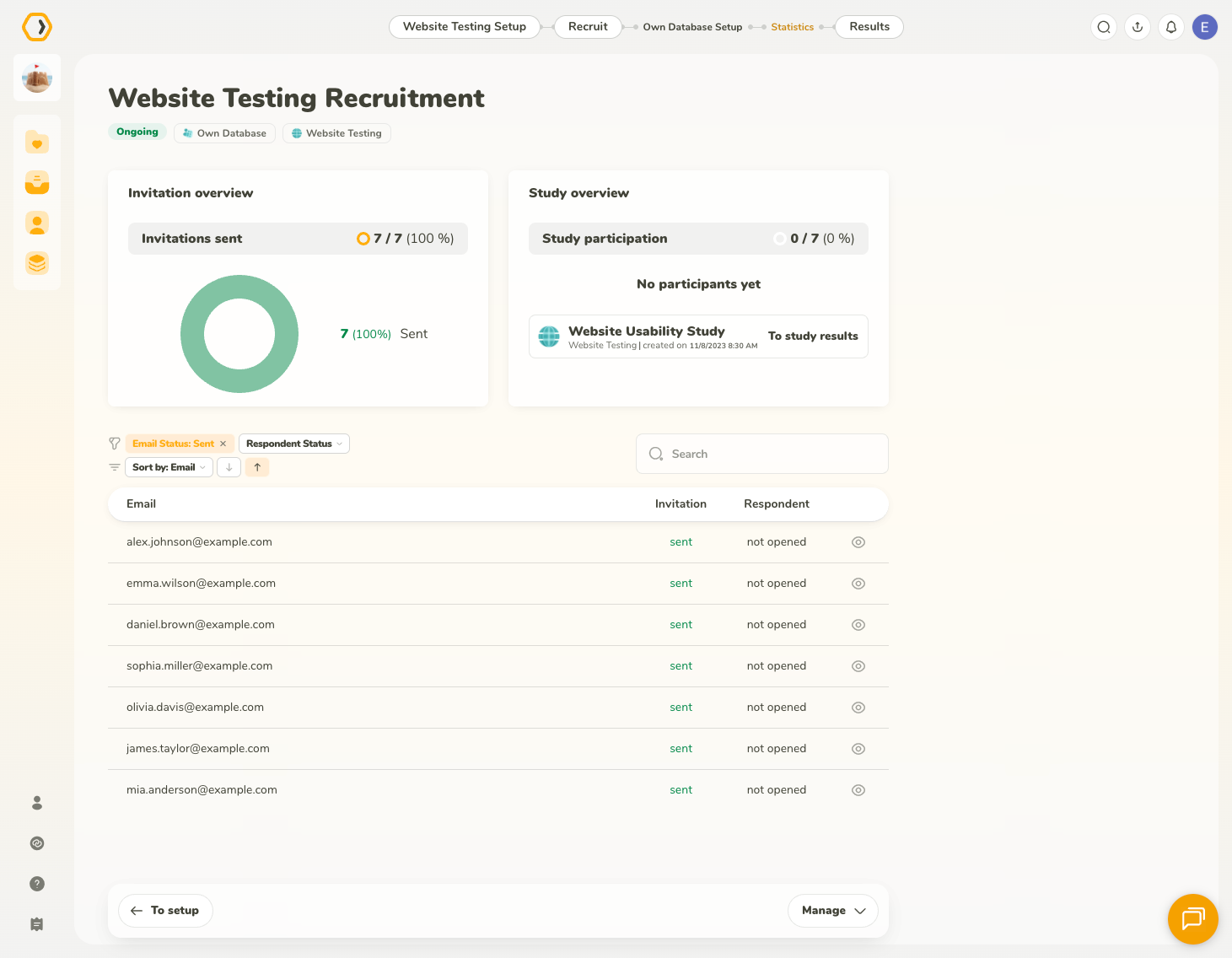
Once your recruiting has begun, you can monitor its progress from the recruiting results page.
At the top of the page, you can see two overview cards:
- Invitation overview shows the status of invitations sent to participants from your Own Database.
- Study overview shows how invited participants are progressing through the study.
The Invitation overview chart summarizes participants by their email status. In the chart, you may see:
- Eligible – participants who are eligible to be invited
- Sent – participants who have already been sent an invitation
- Unsubscribed – participants who unsubscribed from recruitment emails
The Study overview chart summarizes participants by their respondent status. In the chart, you may see:
- Completed – participants who completed the study
- Abandoned – participants who started the study but did not finish it
- Screened out – participants who did not pass the screening questions
Below the charts, you can see a table with all participants included in the recruiting. For each participant, the table shows their invitation status and respondent status.
You can also use the table controls to filter, search, and sort participants. The available filters may include additional statuses that are not shown in the charts. For example:
- Email status filters can include: Eligible, Sent, Unsubscribed, Cancelled, and Overquota
- Respondent status filters can include: Pending, Running, Abandoned, Completed, Screened out, Opened, and Not opened
This helps you quickly focus on a specific group of participants while still keeping the charts as a simple overview of recruiting progress.
Recruiting in progress
Use this page to track invitation delivery, monitor study participation, and filter the participant list as needed.