How do I use the Targeting tab in Session Recording?
Table of contents
In this help, we’ll discuss how to use the Targeting tab to:
Set which countries, devices, operating systems and browsers should be recorded
Block certain IP addresses from being recorded
Enable recording of bot sessions
Set recording rules for subdomains
Set rules for throttling the number of recorded visitors
Set which countries, devices, operating systems and browsers should be recorded
You can target your session recording depending on where the session come from
By default, all visitors are being recorded
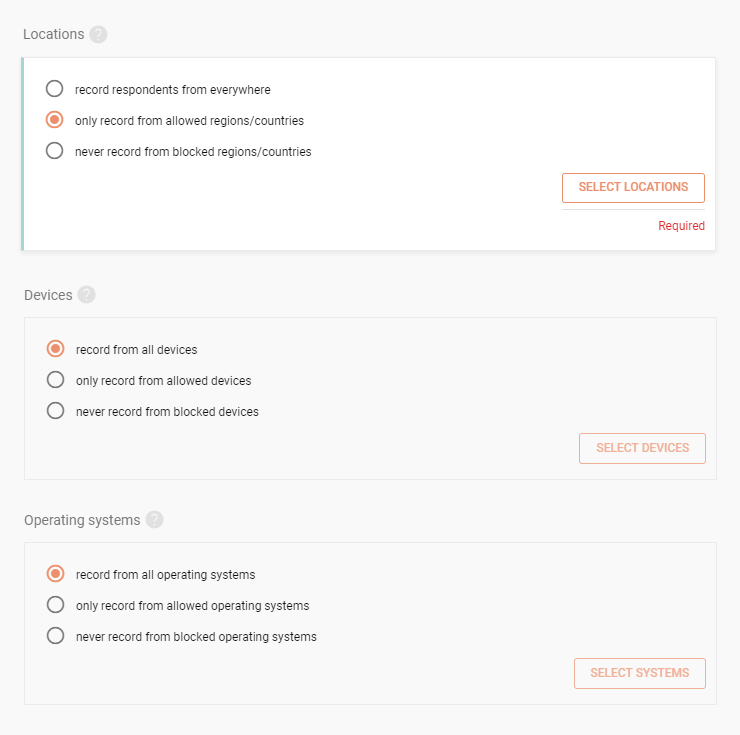
You can target recording by location, device, operating system and browser
Either selectonly record from allowed countries/devices/operating systems/browsersto create a whitelist or selectnever record from blocked countries/devices/operating systems/browsersto create a blacklist
ClickSelect locations/devices/systems/browsersto pick which ones should or shouldn’t be recorded (depending on what you chose in the previous step)
Choose whom to target
For locations, devices, operating systems and browsers, you can select which ones you want to target in your study. You can target absolutely everyone, just a selection of them (whitelist), or everyone except for a selection of them (blacklist).
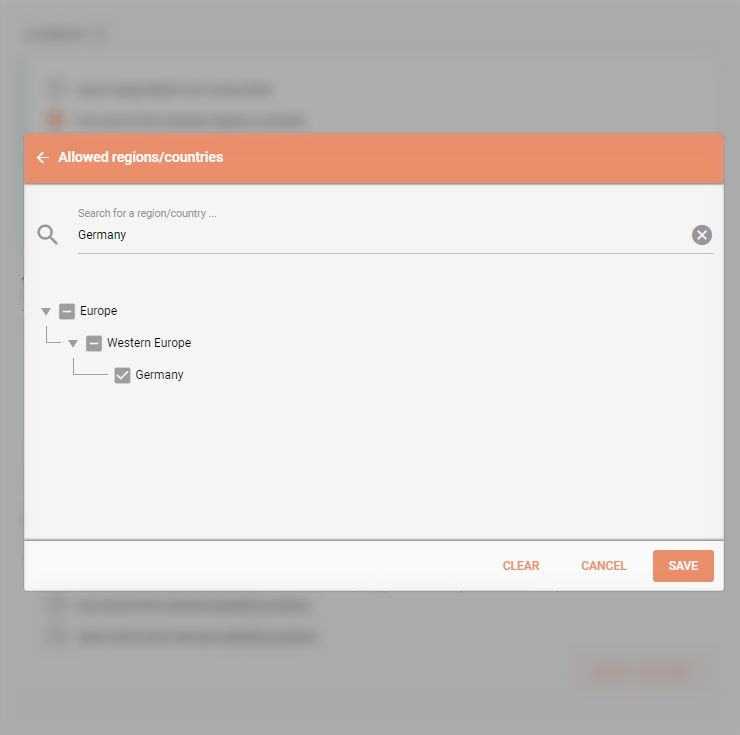
Creating whitelists and blacklists
To pick locations, devices, operating systems or browsers to be or not to be targeted, simply check the right ones on the list.
Block certain IP addresses from being recorded
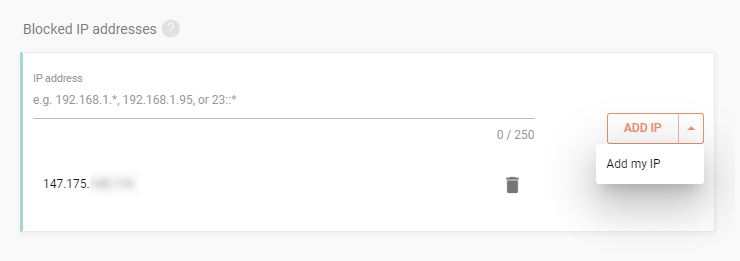
Session Recording allows you to block certain IP addresses or IP ranges (e.g. if you want to block recording sessions from your own team)
Either insert an exact IP adress or define an IP range using wildcards (e.g. 192.168.1.*)
ClickAdd IPto insert another IP address/range to block
For example: You can use this feature to add the IP address of your company router. By doing so, you can prevent recording of sessions coming from your own employees.
Blocking IPs
You block both IPs and whole IP ranges by adding them into the blocked IP list.
Enable recording of bot sessions
By default Session Recording automatically recognizes bot sessions and filters them out (as they normally don’t tell you anything about real users and only waste your session quota)
However, you can opt to record specific bots by checking which bots are blocked by clickingSelect bots
Alternatively, you can enable recording of all bots by uncheckingdo not record selected bots
Don’t enable bot sessions unless you’re absolutely sure that you know what you’re doing
Set recording rules for subdomains
Session Recording records all subdomains of your website/web app by default
You can enable or disable session recording on subdomains (e.g. only record on production.example.com but not on staging.example.com)
Either selectrecord individual subdomainsto create a whitelist or selectrecord all other subdomains exceptto create a blacklist
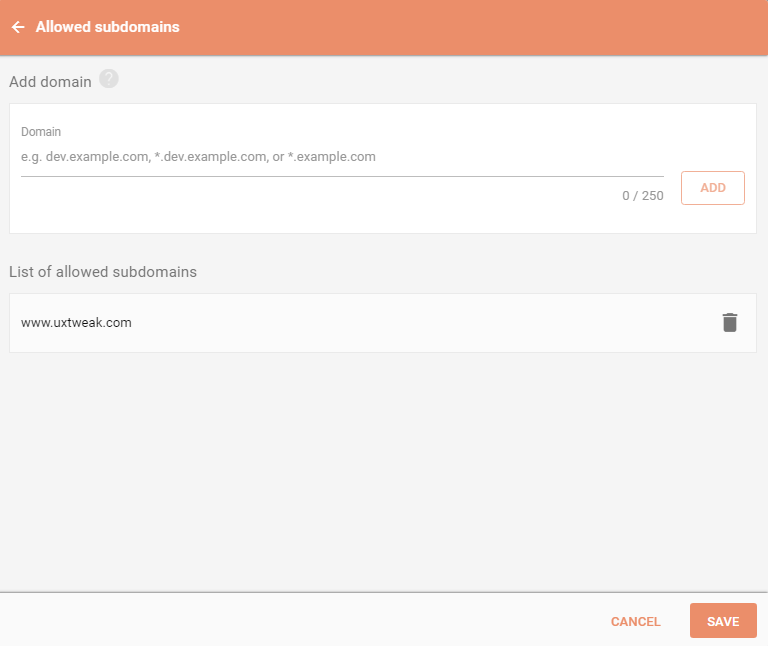
ClickSelect subdomainsand in the modal window that opens, write the subdomain you want to add to the whitelist/blacklist (depending on which one you chose in the previous step)
You can either enter an exact subdomain (e.g. staging.example.com) or use a wildcard to match all subdomains on that level (e.g. *.example.com)
All subdomains need to have the study’s domain as their top domain (e.g. if your domain is example.com, staging.example.com is a valid subdomain, staging.examples.org is not)
Add subdomain
After you have added a valid subdomain to your list, it will appear as seen here. If the subdomain you are trying to add to your list is not correct, you won’t be allowed to add it.
Set rules for throttling the number of recorded visitors
Session Recording records all visitors of your website/web app by default
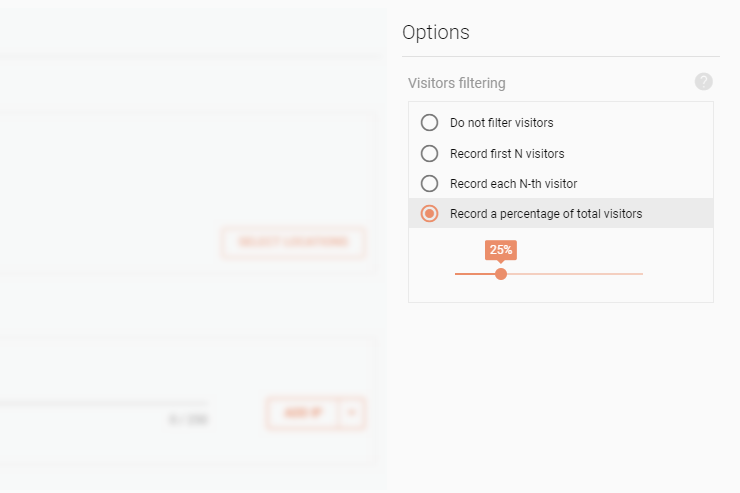
SelectRecord first N visitorsto stop recording new visitors after a certain number of visitors has been reached
SelectRecord each N-th visitorto determine how often a new visitor should be recorded
SelectRecord a percentage of total visitorsto determine how many visitors should be recorded as a percentage
Limit the numbers of recorded visitors
You might not need to record absolutely everyone. In that case, pick one of these options to limit how many or how often users should be recorded.
We need your consent to use cookies
on our website to provide you with the highest level of service.
You can change the settings by clicking the "Settings" button.
These cookies are necessary to ensure the operation and basic functions of the UXtweak website.
They store information about your UXtweak session and help protect your privacy.
Analytics cookies
These cookies are used to analyze traffic on our website, so that we can better understand our users
and improve the site's content, usability and functionality.