





Left panel
You can seamlessly navigate in UXtweak using the left panel.
Navigation in UXtweak has been redesigned to make it easier to move between studies, recruitments, account settings, and team-related actions. The main navigation is now organized into distinct areas so you always know where to find work-related items, account management tools, and support resources.
From the navigation, you can:
The left panel is the main way to move between research-related sections. It contains your workspace navigation at the top and account-related tools at the bottom.
The top part of the panel contains:
You can also switch between teams here. Your currently active team is shown at the top of the panel.
The bottom part of the left panel holds everything related to your account, integrations, support, and plan management. It is grouped into clear sections so you always know where to look.
You’ll find these main items:
Opens a dropdown with:
Goes to your integrations page, where you can manage connected tools.
Opens a dropdown with:
Takes you to plan upgrade options when you need more quota or features.
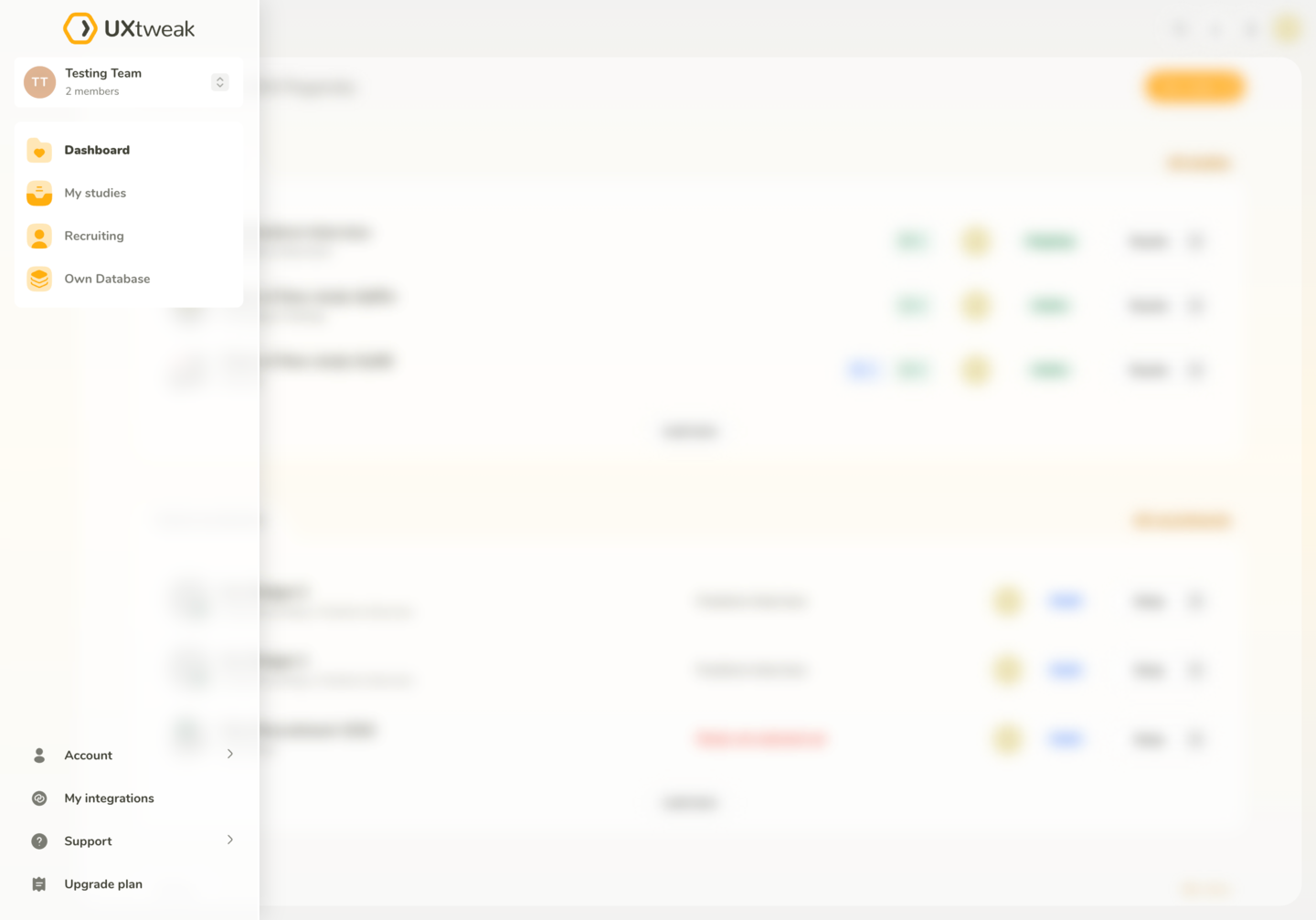
You can seamlessly navigate in UXtweak using the left panel.
Some global controls remain in the top bar for quick access during research work.
The search button now opens a search modal. You can choose whether you want to search within:
This helps when you know the name of what you’re looking for but not where it is located.
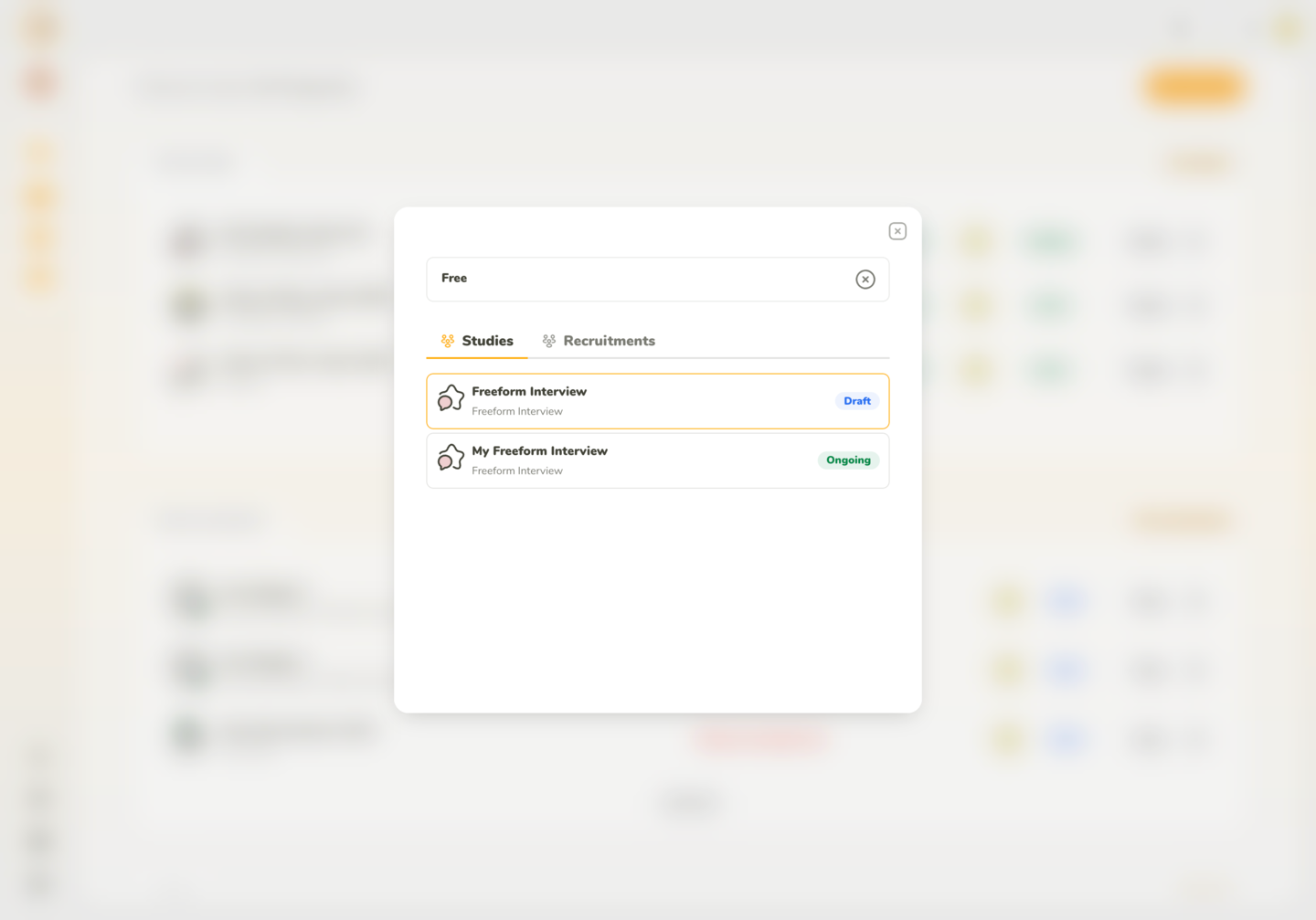
You can search for your studies or recruitments using a global search.
The exports dropdown shows your recent exports so you can download them again without having to re-run data exports. This is useful if you regularly export results for reporting.
Notifications currently show What’s new in UXtweak. These highlight recently released features or changes.
For legacy reasons, the user dropdown has been temporarily kept to avoid sudden disruption in workflows. It includes the following items, which are also found in the new left panel:
This will gradually be removed as users adopt the new panel navigation.
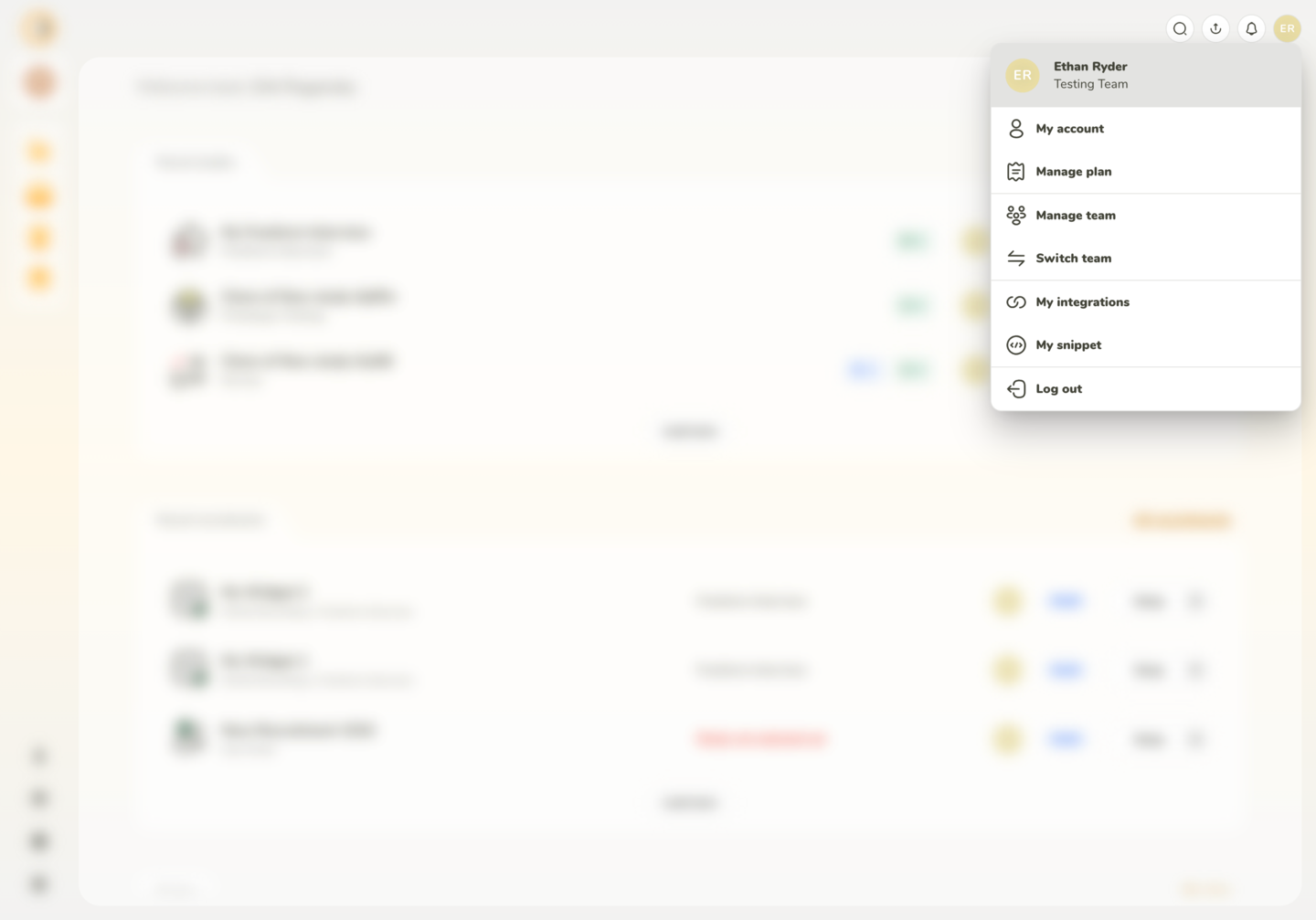
You can use top bar to search, view recent exports, news, and use it for legacy navigation.
When working inside a study, the top navigation shows the main sections of the study setup, such as Recruit, Installation, Statistics, and Results.
If you open a recruitment connected to the study, the recruitment becomes part of this navigation. This allows you to easily move between the study and the recruitment you are currently working with.
Because a study can contain multiple recruitments, the recruitment appears in the navigation only when it is opened.
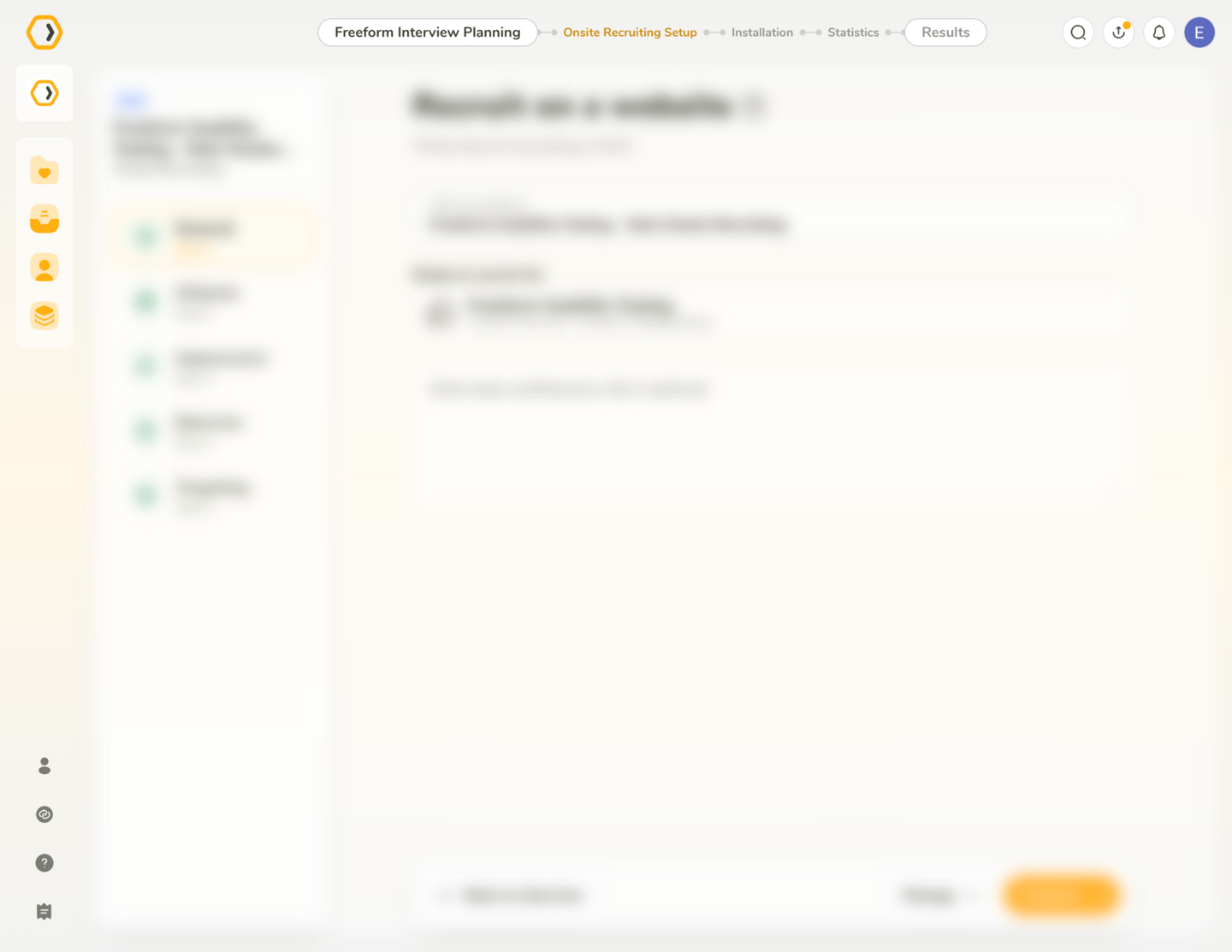
When a recruitment is opened, it becomes part of the study navigation, allowing you to quickly switch between the study and the recruitment setup.