





Recent studies
Shows recently opened studies with status and participant progress.
The dashboard is the first screen you see after signing in to UXtweak. It gives you a quick way to return to your recent work, check how your recruitments are doing, and keep an eye on your pricing quotas.
On the dashboard, you can:
This reduces the need to search for studies or open multiple pages when you already know what you want to continue working on.
What are all these different UXtweak tools? How do they work and what are they used for?
The top section shows the studies you interacted with most recently. This is especially helpful when you work on several studies in parallel and want to pick up where you left off.
Each study entry includes:
On the right side, you will find a button that takes you directly to either study setup or results (depending on its current state). Additional options such as duplicating or deleting the study are available through the action menu. Three studies are shown by default, with the option to load more.
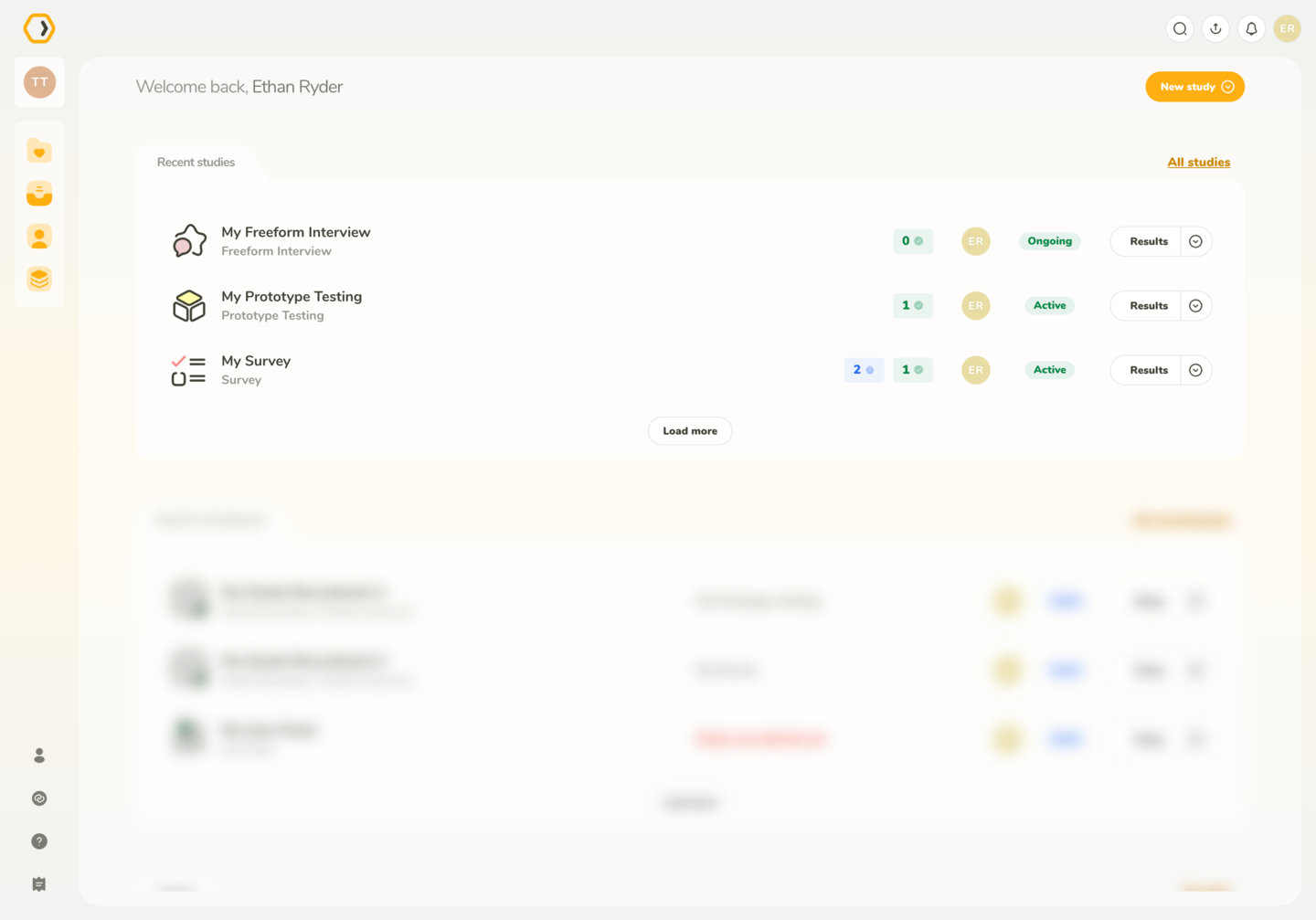
Shows recently opened studies with status and participant progress.
Below the studies, you’ll find your most recent participant recruitments. This lets you quickly check how data collection is progressing without entering individual studies.
Each recruitment entry shows:
An action menu is available on the right with additional recruitment-related options. Three recruitments are shown first with the ability to load more.
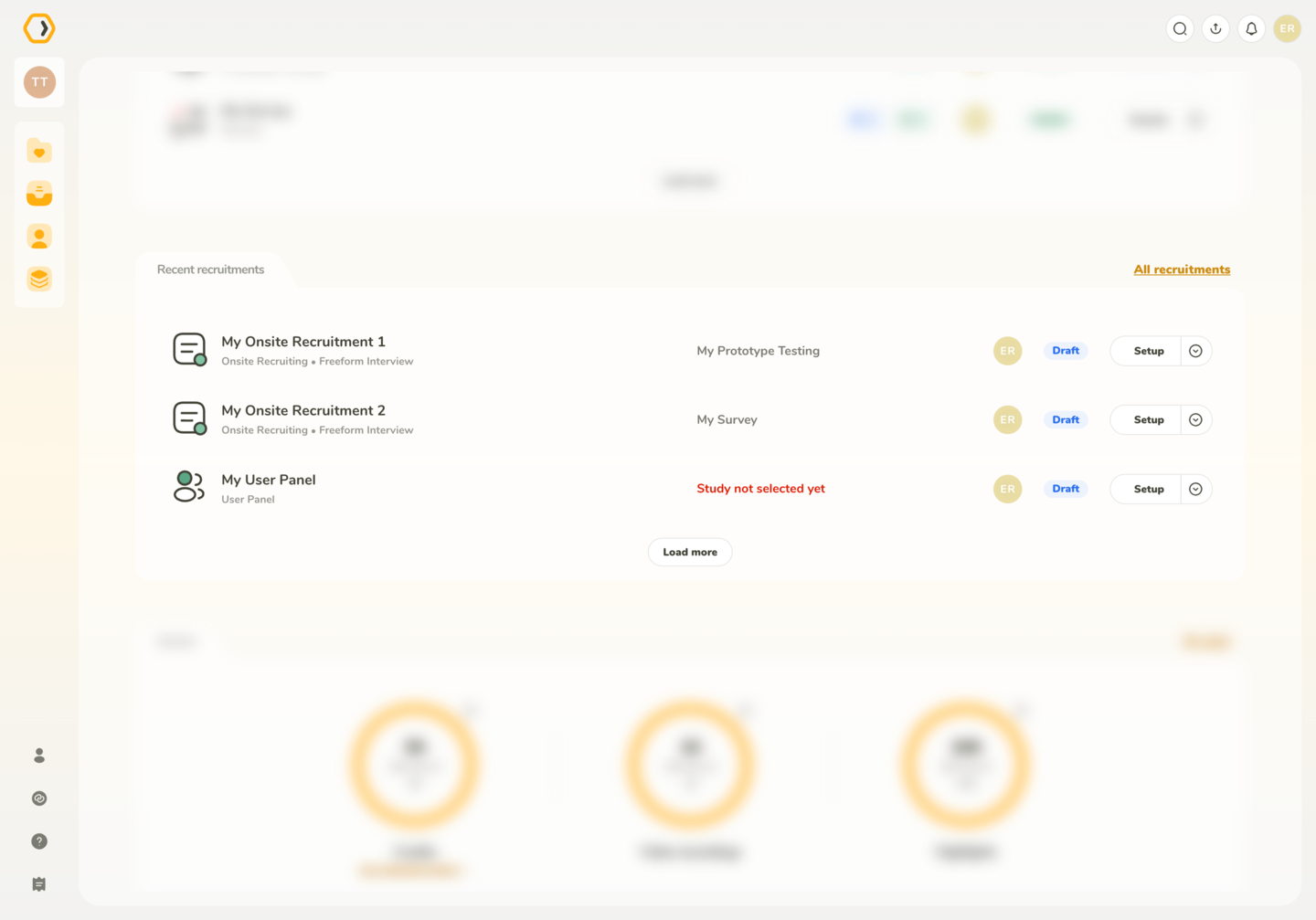
Displays participant recruitments linked to recent studies with their current status.
The Insight List gives you a central overview of Insights collected across all your studies. It helps you quickly browse findings in one place without needing to open each study separately.
Each Insight entry includes:
Three insights are shown by default, with the option to load more.
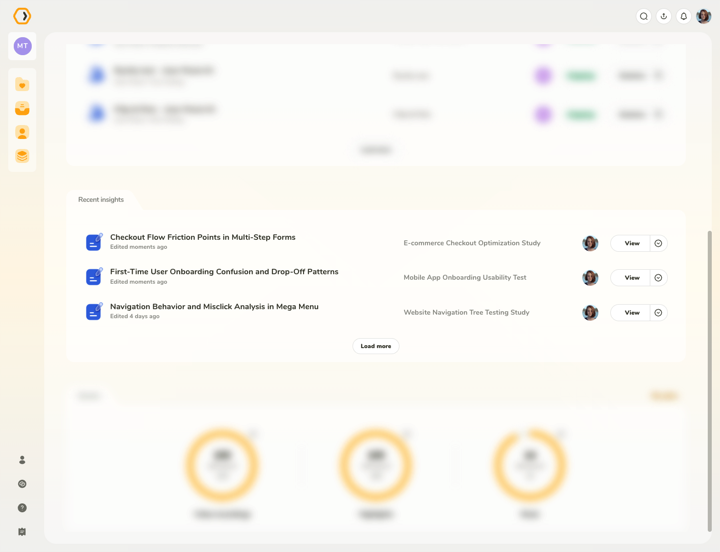
Displays Insights from across studies, including their study, last edit date, and editors.
The Dashboard also shows a short overview of how many participant quotas you have available. Quotas are displayed as donut charts that show how much has been used and how much remains. The specific quotas displayed may differ depending on your account and plan.
For full quota details, including expiration, open My Plan.
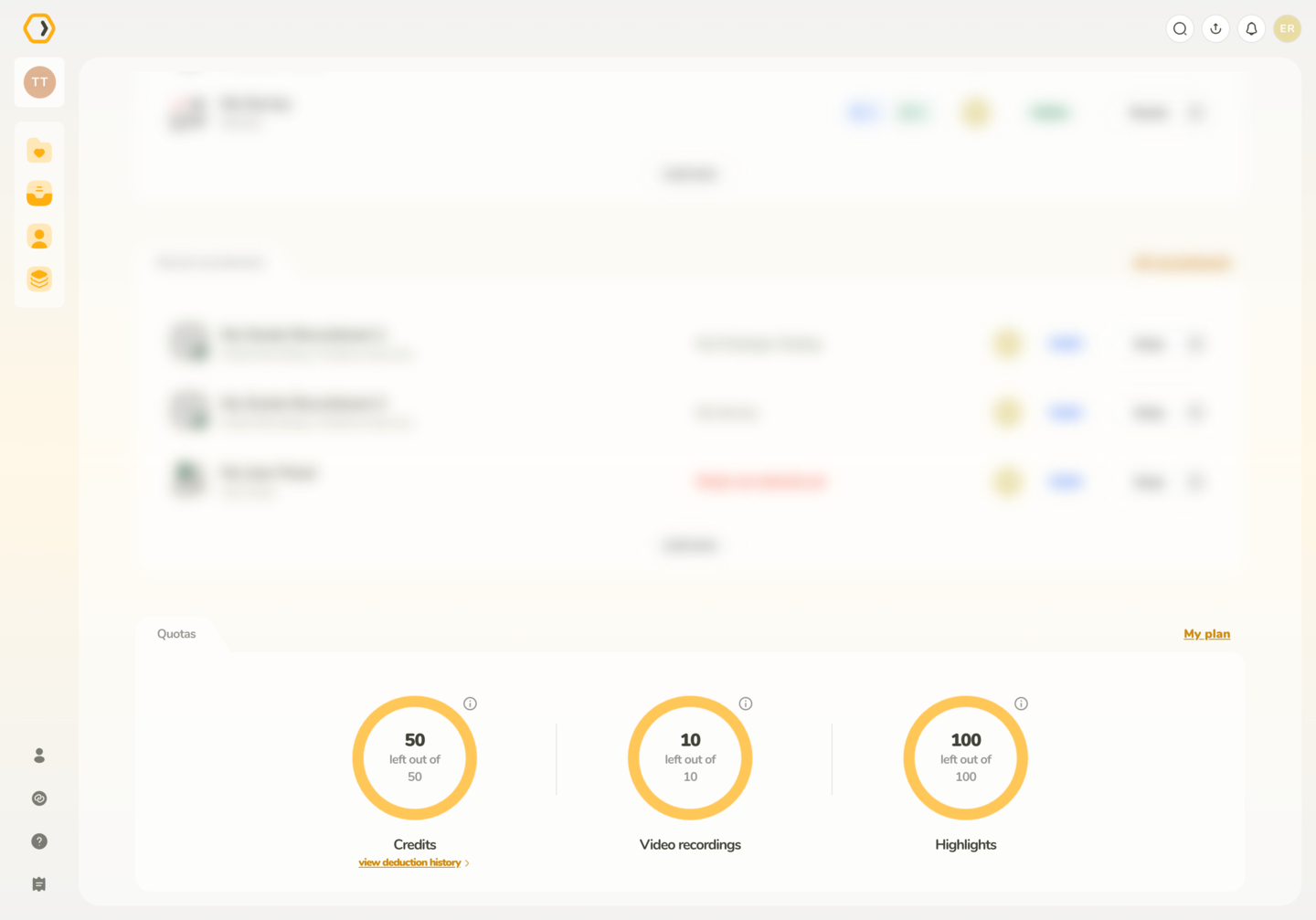
Illustrates remaining quotas as donut charts.
You can create a new study directly from the dashboard by selecting the New study button. This opens a setup window where you can choose a research tool, pick whether the study is moderated or unmoderated, and select a variant for tools that support it (such as open, closed, or hybrid for Card Sorting).
For more information, see our study creation article.